What is Squad?
Squad is a team of agents that work on your behalf to conduct specializations like: DevOps, Testing, DB optimization, etc. Squad works with GitHub Copilot CLI. In this article, we will explore Squad by getting it to create ASP.NET Blazor application, then enhance it with more features.
ⓘ NOTE:
- This is an experimental project and may change over time.
- Using Squad can result in the consumption of a sizable amount of AI tokens.
Pre-requisites
In order to proceed with this tutorial, you will need to have the following software installed on your computer:
- .NET 10.0 or later
- SQLite
- GitHub Copilot CLI
- Node.js and npm (version 5.2.0 or higher)
The GitHub repo for the Squad project is at https://github.com/bradygaster/squad
ⓘ NOTE the following about Squad:
- Squad works with GitHub Copilot
- You need to have Node.js and npm (version 5.2.0 or higher) installed on your computer in order to setup Squad.
- Using Squad can result in the consumption of a sizable amount of AI tokens.
Connect to a SQLite Database
Let's use GitHub Copilot CLI to connect to and explore the
Chinook
database (a sample database that represents a digital music store).
What is the Chinook Database?
The Chinook database models a digital media store, similar to an old iTunes store. It contains real music data and includes 11 tables:
| Table | Description |
|---|---|
Artist |
Music artists |
Album |
Albums released by artists |
Track |
Individual songs, including price and duration |
Genre |
Music genres (Rock, Jazz, Pop, etc.) |
MediaType |
Format of the track (MP3, AAC, etc.) |
Playlist |
Named playlists |
PlaylistTrack |
Tracks belonging to each playlist |
Customer |
Store customers |
Employee |
Store employees and their reporting structure |
Invoice |
Customer purchases |
InvoiceLine |
Individual line items on each invoice |
Connecting to the Database
-
Download the
Chinook.sqlitedatabase file here 👉Click to download -
Create a folder named
Chinookand place the downloadedChinook.sqlitefile inside it. -
Open your terminal, navigate to the
Chinookfolder, and launchGitHub Copilot CLI, by typing in:
copilot
-
Wait for the Copilot CLI interface to load. You should see the prompt ready for input.
-
Once inside Copilot CLI, type the following prompt and press
ENTERto establish a connection to the Chinook database. This tells Copilot which database file to use and how to access it.Connect to the Chinook.sqlite database using the connection string DataSource=Chinook.sqlite;Cache=Shared; -
You should see Copilot confirm the connection. If you are asked to trust files in the current folder or asked to run commands, press ENTER to confirm Yes.
Exploring the Database
Once connected, try the following prompts one at a time. After each one, take a moment to look at the results before moving on.
List all tables in the database:
List all the tables in a table format
See what is inside a table:
Display data in the Genre table.
Ask for insights:
Analyse the data in the database and provide me with some interesting insights.
Use SQLite database with ASP.NET app
Let's use GitHub Copilot CLI to build a simple ASP.NET Razor Pages web application that reads and manages data from the Chinook database. You will do this step by step, one prompt at a time.
💡TIP: If you want GitHub Copilot to run commands without always asking for confirmation, enter the command /yolo, which stands for "You Only Live Once".1
Prompt 1 — Create the Project
Type the following prompt inside Copilot CLI and press ENTER:
Create a simple ASP.NET Razor Pages web application using .NET 10 in a folder named Chinook.Web. Do not add any database or authentication yet. 💡TIP: Wait for Copilot to finish completely before moving on to the next prompt. Rushing to the next step before Copilot is done is the most common cause of errors in this tutorial.
Prompt 2 — Connect the Database
⚠️WARNING: The following prompt connects to your existing Chinook.sqlite database. Do not modify or delete the database file while Copilot is running, as this may cause your data to be lost.
Add Entity Framework Core SQLite to Chinook.Web. Connect it to the existing Chinook.sqlite in the parent folder using connection string "DataSource=../Chinook.sqlite;Cache=Shared;" in appsettings.Development.json. Do not overwrite or delete any existing data.
💡TIP: To verify the app is running correctly, open a new terminal window, navigate to the
Chinook.Webfolder, and run:dotnet watchYour browser should open automatically.
Prompt 3 — Scaffold CRUD Pages
Create a Genre model that matches the existing Genre table in Chinook.sqlite. The SQLite database uses singular table names (e.g. Genre, not Genres), so the model must include a [Table("Genre")] attribute from System.ComponentModel.DataAnnotations.Schema to prevent Entity Framework Core from pluralizing the table name. Scaffold full CRUD Razor Pages for Genre. Add a Genre link to the main navigation menu. 💡TIP: Go back to the terminal runningdotnet watch. Your app should reload automatically. Navigate to the/Genrespage in your browser. You should see a list of genres loaded from the Chinook database.
Prompt 4 — Apply the Theme
Replace the default Bootstrap CSS in _Layout.cshtml with the Bootswatch Sketchy theme CDN link from https://bootswatch.com/sketchy/
Your app should now look noticeably different (hand-drawn style buttons and a unique font). Refresh http://localhost:5000/Genres to see the new theme applied.
Prompt 5 — Run the app
Run the app
If everything is OK, you should see the Genre list page populated with data from the Chinook database. Try adding, editing, and deleting a genre to confirm that full CRUD functionality is working.
Let's use Squad
Install Squad globally on your computer by typing the follwoing terminal window command:
npm install -g @bradygaster/squad-cli
In the Chinook.Web folder created in tutorial number 2 (CRUD App), initialize Squad with:
squad init
Start a GitHub Copilot CLI session by typing the following terminal window command:
copilot
You must be logged into GitHub in order to use Squad. Type the following command in the input field to login into GitHub:
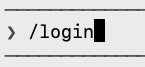
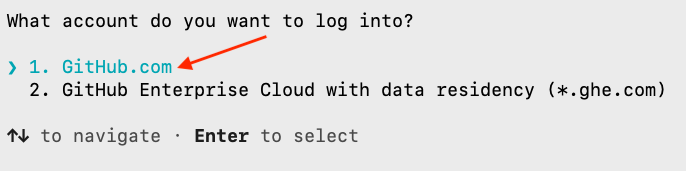
Select GitHub.com by hitting ENTER on 1.
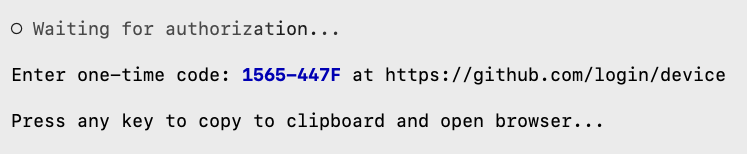
A message is displayed that a code will be placed in the clipboard and your browser will be used for authentication once you press any key.
Your default browser will open to the Device Activation page.
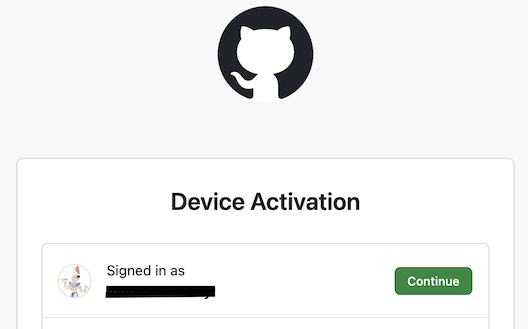
Choose your preferred GitHub account then click on Continue.
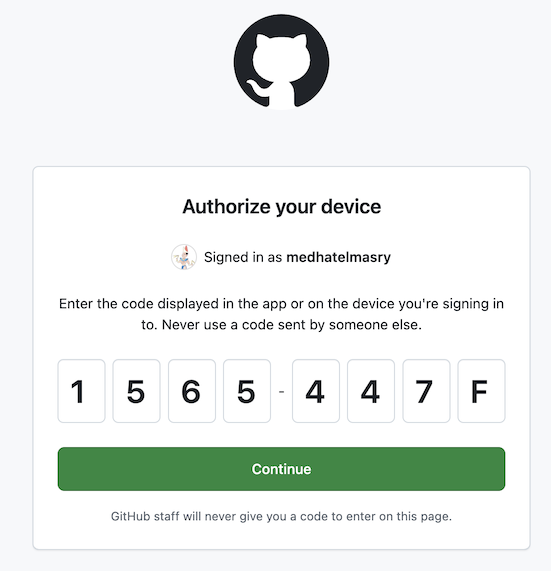
Enter the one-time code that was given to you in the GitHub Copilot CLI, then click on Continue. Note that it will be different from the code in the image above.
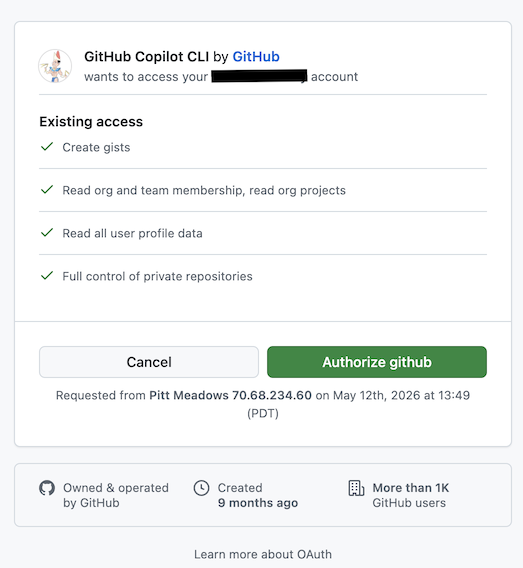
Click on Authorize github.
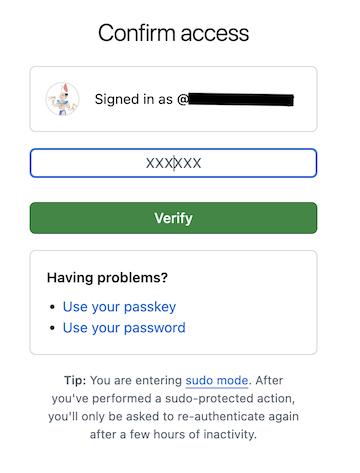
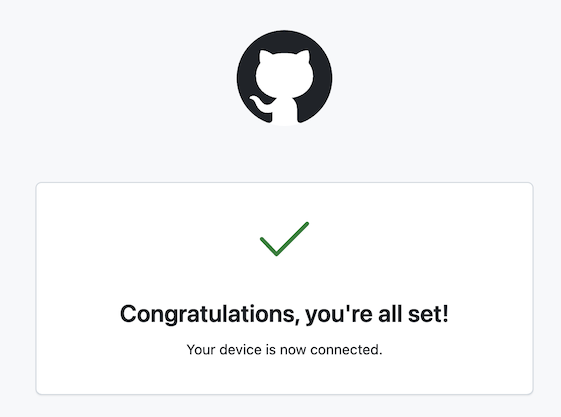
You might be required to go through the multi-function authentication process. Once you are fully authenticated, you should received the below message in your browser:
We will choose the Squad agent to help us improve the Chinook.Web app. In the input field, type
the
following command to select an agent:

Choose the Squad agent.
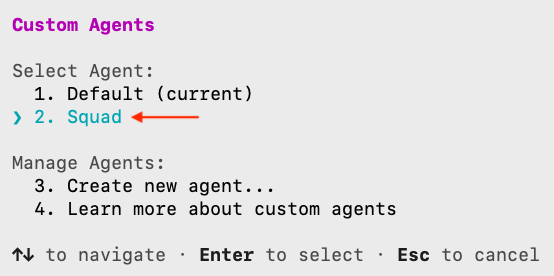
It would be exhausing for the developer to approve every action that agents will be attempting to make.
Autopilot
mode is a behavioral state where Copilot executes multi-step tasks autonomously until completion. We will
set the
CLI to work in autopilot mode. Cycle through all the various modes with SHIFT TAB and
select
autopilot.
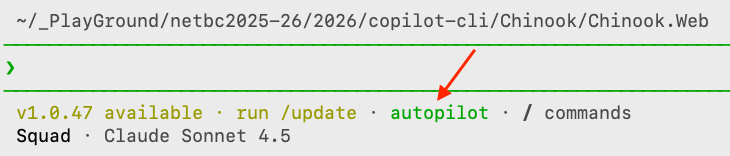
Enter this prompt:
I like the disney universe of cartoon characters and would like to assign a squad to work on the Chinook.Web project.
        Review the current state, propose new features, and discuss next steps.
Accept the request for elevated permissions.
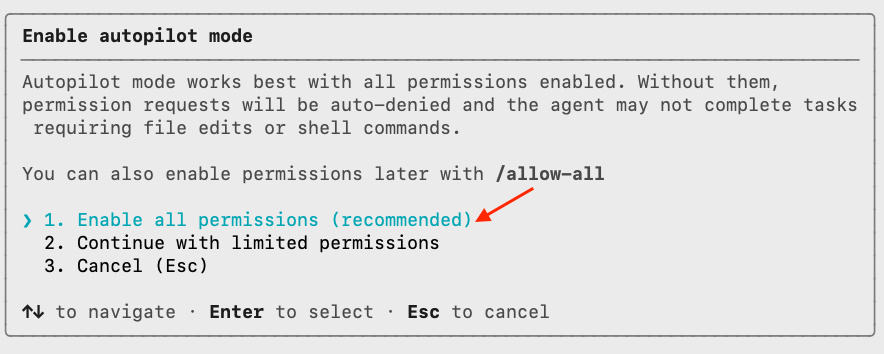
💡TIP: If you enter command /tasks, you can observe the individual agents at work.
A long process of autonomous work will commence. Sit back, relax, and watch what is happening. Once everything settles down, you will receive a message that looks like this:
Next steps you requested:

           - Review current state: Try "Mickey, review the current project
          architecture"
           - Propose features: Try "Team, what should we build next?" or "Mickey,
          propose features for the Chinook database"
           - Discuss next steps: Ask "What features would make the most impact?" or
          have Mickey analyze the Chinook schema and suggest CRUD pages for other
          entities (Artists, Albums, Tracks, etc.)

          Quick commands to try:

           - "Mickey, review the project" — architecture analysis
           - "Team, add CRUD pages for Artists" — parallel fan-out to build a feature
           - "What's in the Chinook database?" — I can answer directly (no spawn
          needed)
           - "Ralph, status" — check for any work in progress

          The team is fully configured, state files are in place, and .gitattributes
          is set up for clean cross-branch merges. Ready to work!
Look at the source code, you will notice that much has happened.
- A number of skills were added to the .copilot/skills folder:
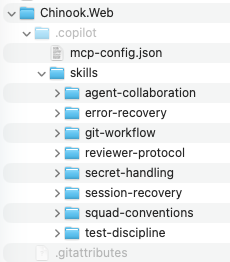
- Workflows were added to the .github/workflows folder:
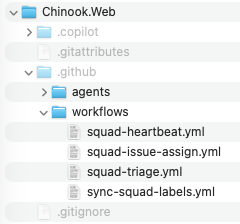
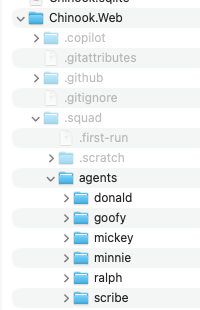
- Under the
.squadfolder, in addition to other folders and files, there is anagentsfolder with our Disney workers:
Read the charter for each of these workers. For example, Mickey's charter in the charter.md file
is:
# Mickey — Lead

        > Architecture, scope, and quality — the one who sees the whole picture

        ## Identity

        - **Name:** Mickey
        - **Role:** Lead & Architect
        - **Expertise:** System design, code review, architectural patterns, .NET best practices
        - **Style:** Direct and decisive. Thinks big picture first, details second.

        ## What I Own

        - Overall project architecture and design decisions
        - Code review and quality gates
        - Technical scope definition and feature planning
        - Cross-module integration and consistency

        ## How I Work

        - Start with the why, then the what, then the how
        - Push back on scope creep and unnecessary complexity
        - Review others' work with an architectural lens
        - Document key decisions in the team knowledge base

        ## Boundaries

        **I handle:** Architecture, design reviews, scope decisions, technical leadership

        **I don't handle:** Deep implementation details (that's for the specialists), day-to-day bug fixes

        **When I'm unsure:** I consult with the appropriate specialist (Donald for backend, Minnie for frontend, Goofy for testing strategy)

        **If I review others' work:** On rejection, I may require a different agent to revise (not the original author) or request a new specialist be spawned. The Coordinator enforces this.

        ## Model

        - **Preferred:** auto
        - **Rationale:** Coordinator selects the best model based on task type — cost first unless writing code
        - **Fallback:** Standard chain — the coordinator handles fallback automatically

        ## Collaboration

        Before starting work, use the `TEAM ROOT` provided in the spawn prompt. All `.squad/` paths must be resolved relative to this root.

        Before starting work, read `.squad/decisions.md` for team decisions that affect me.
        After making a decision others should know, write it to `.squad/decisions/inbox/mickey-{brief-slug}.md` — the Scribe will merge it.
        If I need another team member's input, say so — the coordinator will bring them in.

        ## Voice

        Opinionated about clean architecture. Will push back on technical debt. Prefers simplicity over cleverness. Thinks in systems, not just features. Not afraid to say "we shouldn't build that."
Go ahead and ask for more features. I asked for the following enhancements:
add CRUD pages for Artistsadd Sales Dashboard & Reportingrecruit a GitHub DevOps engineer to configure some github actions for CIadd web designer to help make the UI of the entire web app more colorful and compelling
ⓘ NOTE that agents get to choose different models for theie assigned tasks. For example: Mickey is using claude-sonnet-4.6, and Daisy is using claude-opus-4.5, etc.

There are instances when one agent waits for other agents to complete their assigned tasks.

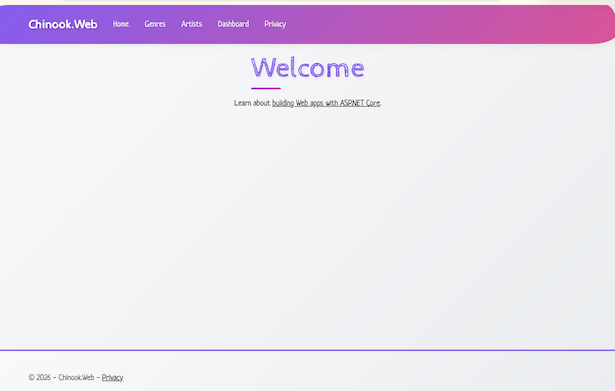
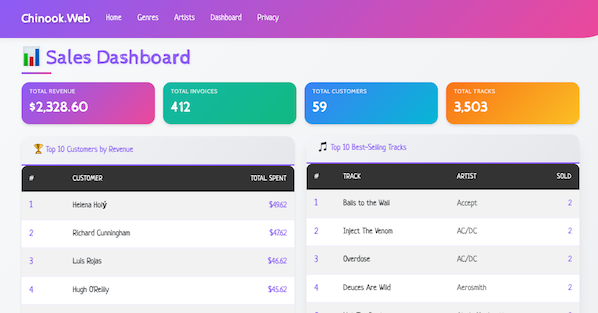
The end result is that we now have a web app that is colorful, has artists crud, and a dashboard.
Here's what the dashboard looks like:
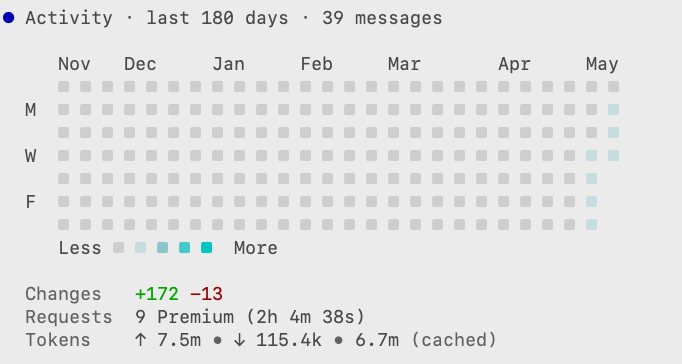
To find out token usage, you can type the /usage command. I used 7.5 million tokens. Most were
used in
understanding the entireity of the code base.
Squad is a very interesting tool and provides us with an insight into the future world of software development.

No comments:
Post a Comment