Showing posts with label Laravel. Show all posts

Monday, March 9, 2026

MCP server with Laravel

In this article, we will create a tool in our Laravel MCP server to add to-do items. We will then consume the MCP server from an MCP client like VS Code.

Source Code: https://github.com/medhatelmasry/mcp-todo-laravel

Getting Started

Create a standard Laravel app with the following command:

composer create-project laravel/laravel mcp-todo-laravel
cd mcp-todo-laravel

Install the official Laravel MCP package via Composer:

composer require laravel/mcp

Publish the MCP configuration and routing files:

php artisan vendor:publish --tag=ai-routes

This creates routes/ai.php, where we will register your MCP servers.

Open your application in VS Code. 

We need to register the ai.php in the application bootstrap file. Edit the bootstrap/app.php file. Make these changes:

1) Add this at the top:

use Illuminate\Support\Facades\Route;

2) Add this code just under “health: '/up',”:

then: function () {
  Route::prefix('mcp')
    ->middleware('api') // api middleware disables CSRF checks
    ->group(base_path('routes/ai.php'));
},


Create and Register the Server 

Generate an MCP server class to group our tools:

php artisan make:mcp-server TodoServer

This creates the following file:

<?php

namespace App\Mcp\Servers;

use Laravel\Mcp\Server;
use Laravel\Mcp\Server\Attributes\Instructions;
use Laravel\Mcp\Server\Attributes\Name;
use Laravel\Mcp\Server\Attributes\Version;

#[Name(Todo Server')]
#[Version('0.0.1')]
#[Instructions('This server is used to manage the to-do list. Tools are used to add to-do items.')]
class TodoServer extends Server {
    protected array $tools = [
        //
    ];

    protected array $resources = [
        //
    ];

    protected array $prompts = [
        //
    ];
}

Update the file with the text highlighted in yellow above.

Then, register it in routes/ai.php as either a local or web server (or both) by replacing the content with the following:


<?php
use App\Mcp\Servers\TodoServer;
use Laravel\Mcp\Facades\Mcp;

// Web server: accessible via HTTP POST at /mcp/todo
Mcp::web('/mcp/todo', TodoServer::class);

// Local server: runs as an Artisan command
Mcp::local('todo', TodoServer::class);


Create an MCP Tool 

Tools define the actions an AI can perform. Generate a new tool class with:

php artisan make:mcp-tool AddTodoTool

This adds the following tool:


<?php

namespace App\Mcp\Tools;

use Illuminate\Contracts\JsonSchema\JsonSchema;
use Laravel\Mcp\Request;
use Laravel\Mcp\Response;
use Laravel\Mcp\Server\Attributes\Description;
use Laravel\Mcp\Server\Tool;

#[Description('A description of what this tool does.')]
class AddTodoTool extends Tool {
    public function handle(Request $request): Response {
        //
        return Response::text('The content generated by the tool.');
    }
    public function schema(JsonSchema $schema): array {
        return [
            //
        ];
    }
}

Replace the above file with the following code:

<?php

namespace App\Mcp\Tools;

use Illuminate\Contracts\JsonSchema\JsonSchema;
use Laravel\Mcp\Request;
use Laravel\Mcp\Response;
use Laravel\Mcp\Server\Attributes\Description;
use Laravel\Mcp\Server\Tool;

#[Description('Add a to-do item to the database. It takes description, isDone (Boolean) and date as parameters.')]
class AddTodoTool extends Tool {
    public function handle(Request $request): Response {
        $validated = $request->validate( 
            [
                'description' => 'required|string',
                'isDone' => 'required|boolean',
                'created_at' => 'required|string',
            ]);

        logger($validated);

        return Response::text('The content generated by the tool.');
    }

    public function schema(JsonSchema $schema): array {
        return [
            'description' => $schema->string()
                ->description("The description of the to-do item")
                ->required(),
            'isDone' => $schema->boolean()
                ->description("True if done and False if not done")
                ->required(),
            'created_at' => $schema->string()
                ->description("The date when the to-do item was created")
                ->required(),
        ];
    }
}

Register the above tool in the $tools array in app/Mcp/Servers/TodoServer.php. Add the code highlighted in yellow below.

use App\Mcp\Tools\AddTodoTool;

. . . . . . . . . .

protected array $tools = [
    AddTodoTool::class,
];

Let’s now run the server with:

php artisan serve


Connecting to a Client

To test our server, we can use the MCP Inspector or add the endpoint to an AI IDE like VS Code. 

Let us first test with the MCP Inspector. In another terminal window from the same folder, start the MCP inspector with:

php artisan mcp:inspector mcp/todo

The inspector will open in your default browsesr. Add :8000 to the URL, then click on the black Connect button.

Click on Tools, followed by "List Tools".

Click on "Add Todo Tool", enter a description (like: Add to-do item: go to the gym), enter a date, then click on the "Run Tool" button - as shown below.

The following confirmation will be displayed:

We now know that the MCP server and to-do tool are working as expected. Let's consume the MCP service from VS Code. In Visual Studio Code, from the top menu, select View >> Pallette

Choose "MCP: Add Server ...".

Choose "HTTP (HTTP or Server-Sent Events).

Enter http://localhost:8000/mcp/todo for the URL, then hit ENTER.

Give the server ID: todo-mcp-server.

Choose: Workspace Available in the workspace, runs locally.

A file gets created under .vscode named mcp.json that looks like this:


{
	"servers": {
		"todo-mcp-server": {
			"url": "http://localhost:8000/mcp/todo",
			"type": "http"
		}
	},
	"inputs": []
}

Make sure the server is running.

In Visual Studio Code, open the chat panel by clicking on the below tool.

Choose Agent mode.


Next, click on the "Configure Tools ..." tool as shown below.

The "Configure Tools ..." panel will open at the top and you should see that our todo-mcp-server is running. 

Close the "Configure Tools ..." panel by clicking on the blue OK button.

Enter the following prompt into the chat windows:

using the todo mcp server, add this todo item: fix the dish washer dated 2026-03-07

VS Code will seek your permission to proceed. Click on the "Allow in this Session" button.

Sample Output:

Extending the Laravel MCP Tool

Let us get our Todo tool to add items into a SQLite database. We can get AI to do some of the coding for us. Enter this prompt into the chat window:
Create a model called Todo, Add a migration. The database table should have description (string) and isDone ( Boolean). In the model, add all columns as fillable.

This may request that you agree to the execution of this terminal window command:

It then asks you to run this command to apply the migration:

php artisan migrate

Go ahead and run the above command. 

In app/Mcp/Tools/AddTodoTool.php:

1) Add this at the top:

use App\Models\Todo;

2) Add this code to the handle() method just before the final return statement:

Todo::create($validated);

Test it out by entering this prompt:

I need to put gas in the car and buy bread.

Sample Result:

The todos table in the database/database.sqlite database file will contain the data that was just inserted into the database.

Conclusion

We have successfully added a Todo MCP tool in a Laravel application. There are so many opportunities to get AI to participate in a new way of concievinng applications that users can interface with using a AI chat interaction.

Saturday, March 26, 2022

Deploy DB driven Laravel web app to Azure App Service running on Linux NGINX web server through GitHub Actions

Laravel is an open-source PHP framework designed to make developing web apps mush easier and faster through built-in features. It is based on the MVC design pattern.

In this article, I will show you how to deploy a Laravel application to Azure App Services. The Azure web server is NGINX running on Linux version "Debian GNU/Linux 10 (buster)".

Assumptions

The following is assumed:

  • You have Git, PHP and Composer installed on your computer.
  • You have an Azure subscription
  • You have a GitHub account

Getting Started

We will start our journey with a very simple Laravel application that lists some data from a SQLite database. Go into a working directory on your computer and run the following command from a terminal window to clone a GitHub repo:

git clone https://github.com/medhatelmasry/laravel-azure.git

It is a good idea to delete the .git folder on your computer.

Once the application is cloned, change directory to the cloned app and start your app as shown below:

cd laravel-azure
composer install
php artisan serve --port=8888

The web server will start on your computer listening on port 8888.

Starting Laravel development server: http://127.0.0.1:8888
[Sat Mar 26 15:36:29 2022] PHP 8.1.2 Development Server (http://127.0.0.1:8888) started

Point your browser to http://localhost:8888/ and you will see the following page:


For demo purposes, data is pulled from a SQLite database file at database/autos.db

Disclaimer: It is normal practice that the .env file is excluded from being pushed to source control. If you look at the .gitignore file, the line pertaining to .env is commented out because there is really no confidential information in this file.

Create a repository in your GitHub account and push the source code to it.

Create Azure App Service

Login to your Azure account by visiting https://portal.azure.com. Enter "app services" in the filter field, then click on "App Services".


Click on "+ Create" on the top left-side.

On the "Create Web App Page", choose. your subscription then create new resource group.


Give your app a suitable host name that is unique.


Next, ensure these settings for Publish, Runtime stack and Operating System:


Choose suitable values for the remaining settings based on your individual preference then click on the blue "Review + create" button:


Click on Create button after you have reviewed your. choices.


Once your app service is successfully provisioned, you can click on the "Go to resource" button.


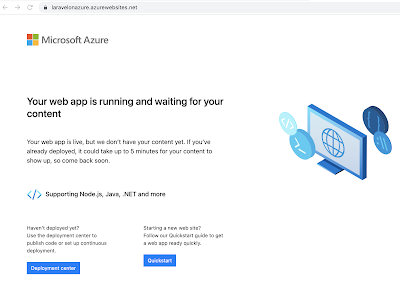
You can see a default web page to your web app be clicking on the URL link on the top right-side.


The default page looks like this.

\

CI/CD pipeline

Of course, we want to deploy our Laravel PHP site from our GitHub repo. An easy way to achieve this is to use Azure's "Deployment Center". Click on "Deployment Center" in the left-side navigation.

In the "Deployment Center" blade, select GitHub.


If this is your first time to connect Azure to your GitHub account, you will be asked to go through the GitHub authentication process. Thereafter, select the appropriate GitHub Organization, Repository and Branch. My experience was:


Once you click on Save, the deployment process commences.


To go to your GitHub repo, click on the main link under Branch.

To see the deployment in action, click on Actions in your GitHub repository.


Click on the workflow in progress.


The workflow will be going through a build and deploy process. 


Be patient as it takes about 15 minutes to complete. This is because during build the command "composer install" is executed. This produces a multitude of files under the vendors folder, which are thereafter sent to Azure. Once the workflow is completed, your GitHub workflow page will look like this:


The workflow files were automatically generated and placed a .yml file in the .github/workflows folder with your source code.


You can click on the .yml file to see what the file looks like.


At this point, it is worth going back to the code on your computer and doing a pull of your code so that you get a copy of the .yml file that was added to your source code.

Configuring app on Azure

Back on the Azure portal, if you refresh the default page of our web app, you will experience a "403 Forbidden" message, which typically means that the root directory has no welcome page.


This is understandable because the main index.php page in Laravel resides in the /public folder. THis means that we need to do some configuration work on Azure. 

In Azure, enter the term advanced in the search input field then click on "Advanced Tools".


Click "Go -->".


A page opens up in a new browser tab. Click on SSH on the top menu.


A Linux terminal window is open.


If you are interested to know what version of Linux this is, enter the following terminal command:

cat /etc/os-release

The value beside PRETTY_NAME is the Linux distribution and version.

PRETTY_NAME="Debian GNU/Linux 10 (buster)"
NAME="Debian GNU/Linux"
VERSION_ID="10"
VERSION="10 (buster)"
VERSION_CODENAME=buster
ID=debian
HOME_URL="https://www.debian.org/"
SUPPORT_URL="https://www.debian.org/support"
BUG_REPORT_URL="https://bugs.debian.org/"

We will make a copy of the existing nginx configuration and place the file inside the /home/site directory with the following command:

cp /etc/nginx/sites-available/default /home/site/default

Once copied, edit the /home/site/default file with nano or vi. I will use nano.

nano /home/site/default

Make the following changes:

FromToAround Line #
root /home/site/wwwrootroot /home/site/wwwroot/public6
location / {
   index  index.php index.html index.htm hostingstart.html;
}
      
location / {
   index  index.php index.html index.htm hostingstart.html;
   try_files $uri $uri/ /index.php?$query_string;
}
      
10


In nano, hit CTRL X to save, enter Y then hit return.

We need to create a bash script file that overrides the existing default file with our customized version, then restart the server. Change directory to the site folder.

cd site

Inside the site directory, using vi or nano, create a file named startup.sh. To create a file with nano, type "nano startup.sh". Otherwise,  to create a file with vi, type "vi startup.sh". Add the following content to startup.sh:

#!/bin/bash

cp /home/site/default /etc/nginx/sites-available/default
service nginx reload

We will make our bash script file executable with:

chmod u+x startup.sh

While in the terminal window on Azure, let's visit the folder that contains our Laravel application. Do this by going to the wwwroot folder.

cd wwwroot
ls -a

This reveals the existence of all the files that we had on GitHub plus files in the vendor folder.


Navigate back to your App Service via the Azure Portal. Select Configuration in the Settings section.


Click on the "General Settings" tab, enter "/home/site/startup.sh" for the "Startup Command", then click on Save.


Click on blue Continue button the the "Save changes" prompt.


Now, when you refresh the website, you should see that our web app is working as expected.

Conclusion

We have successfully deployed a database driven Laravel PHP application to Azure App Services through GitHub. I hope you use the principles you learned in this tutorial to deploy much more interesting Laravel applications.