Showing posts with label Container. Show all posts

Thursday, February 12, 2026

docker-compose with SQL Server and ASP.NET

This article discussed one approach to having your ASP.NET development environment work with SQL Server (MSSQL) running in a docker container.

Source code: https://github.com/medhatelmasry/AspMSSQL

It is assumed that the following installed on your computer:

  1. .NET 10.0 
  2. Docker Desktop 
  3. ‘dotnet-ef’ tool 

Setting up SQL Server docker container

To download a suitable SQL Server image from Docker Hub and run it on your local computer, type the following command from within a terminal window:

docker run --cap-add SYS_PTRACE -e ACCEPT_EULA=1 -e MSSQL_SA_PASSWORD=SqlPassword! -p 1444:1433 --name mssql -d mcr.microsoft.com/mssql/server:2022-latest

This starts a container named mssql that listens on port 1444 on your local computer. The sa password is SqlPassword!.

To ensure that the SQL Server container is running, type the following from within a terminal window:

docker ps

You will see a message like the following:

CONTAINER ID   IMAGE                                        ...... NAMES
e84053717017   mcr.microsoft.com/mssql/server:2022-latest   ...... mssql

Creating our ASP.NET MVC App

Create an ASP.NET MVC app named AspMSSQL with SQL Server support by running the following terminal window commands:

dotnet new mvc --auth individual --use-local-db -o AspMSSQL
cd AspMSSQL

To run the web application and see what it looks like, enter the following command:

dotnet watch

The app starts in your default browser and looks like this:

The default page when starting an ASP.NET MVC application.

Let us configure our web application so that the connection string can be constructed from environment variables. Open the Program.cs file in your favourite editor and comment out (or delete) the following statements:

var connectionString = builder.Configuration.GetConnectionString("DefaultConnection") ?? throw new InvalidOperationException("Connection string 'DefaultConnection' not found.");

Replace the above code with the following:

var host = builder.Configuration["DBHOST"] ?? "localhost";
var port = builder.Configuration["DBPORT"] ?? "1444";
var password = builder.Configuration["DBPASSWORD"] ?? "SqlPassword!";
var db = builder.Configuration["DBNAME"] ?? "mydb";
var user = builder.Configuration["DBUSER"] ?? "sa";

string connectionString = $"Server={host},{port};Database={db};UID={user};PWD={password};TrustServerCertificate=True;";

Five environment variables are used in the database connection string. These are: DBHOST, DBPORT , DBPASSWORD, DBNAME and DBUSER. If these environment variables are not found then they will take on default values: localhost, 1444, SqlPassword!, mydb and sa respectively.

Go ahead and delete the connection string from appsettings.json as it is not needed anymore:

"ConnectionStrings": {
  "DefaultConnection": "Server=(localdb)\\mssqllocaldb;Database=aspnet-AspMSSQL; MultipleActiveResultSets=true"
},

Entity Framework Migrations

We can instruct our application to automatically process any outstanding Entity Framework migrations. This is done by adding the following statement to Program.cs right before the last app.Run() statement:

using (var scope = app.Services.CreateScope()) {
    var services = scope.ServiceProvider;

    var context = services.GetRequiredService<ApplicationDbContext>();    
    context.Database.Migrate();
}

Test app

Now, let's test our web app and see whether it can talk to the containerized MSSQL database server. Run the web application with the following terminal command:

dotnet watch

Click on the Register link on the top right side.

The ASP.NET MVC user register page.

I entered an Email, Password and Confirm password, then clicked on the Register button. The website then displays the following page that requires that you confirm the email address:

User Register Confirmation Page.

Click on the “Click here to confirm your account” link. This leads you to a confirmation page:

After a user confirms email, the user confirm email aler displays.

Login with the email address and password that you registered with.

The message on the top right side confirms that the user was saved and that communication between the ASP.NET MVC app and SQL Server is working as expected.

Dockeri-zing app

We will generate the release version of the application by executing the following command from a terminal window in the root directory of the web app:

dotnet publish -o distrib

The above command instructs dotnet to produce the release version of the application in the distrib directory. When you inspect the distrib directory, you will see files like the following:

A screen capture of the files in the bin folder containing the main DLL named AspMSSQL.dll

The highlighted file in the above image is the main DLL file that is the entry point into the web application. Let us run the DLL. To do this, change to the distrib directory, then run your main DLL file with:

cd distrib
dotnet AspMSSQL.dll

This displays the familiar messages from the web server that the app is ready to be accessed from a browser. 

Screen capture showing the terminal window after executing command "dotnet AspMSSQL.dll"

Hit CTRL C to stop the web server.

We now have a good idea about the ASP.NET artifacts that need to be copied into a container.

In a terminal window, stop and remove the MSSQL container with:

docker rm -f mssql

Return to the root directory of your project by typing the following in a terminal window:

cd ..

Docker image for web app

We need to create a docker image that will contain the .NET runtime. At the time of writing this article, the current version of .NET is 10.0.

We can exclude files from being copied into the container imag Add a file named .dockerignore in the root of the web application with this content:

**/.git
**/.gitignore
**/node_modules
**/npm-debug.log
**/.DS_Store
**/bin
**/obj
**/.vs
**/.vscode
**/.env
**/*.user
**/*.suo
**/.idea
**/coverage
**/.nyc_output
**/docker-compose*.yml
**/Dockerfile*
**/.github
**/README.md
**/LICENSE

Create a text file named Dockerfile and add to it the following content:

# Build stage
FROM mcr.microsoft.com/dotnet/sdk:10.0 AS build
WORKDIR /src

# Copy project file and restore dependencies
COPY ["AspMSSQL.csproj", "."]
RUN dotnet restore "AspMSSQL.csproj"

# Copy the rest of the source code
COPY . .

# Build the application
RUN dotnet build "AspMSSQL.csproj" -c Release -o /app/build

# Publish stage
FROM build AS publish
RUN dotnet publish "AspMSSQL.csproj" -c Release -o /app/publish /p:UseAppHost=false

# Runtime stage
FROM mcr.microsoft.com/dotnet/aspnet:10.0 AS runtime
WORKDIR /app

# Install curl for health checks (optional)
RUN apt-get update && apt-get install -y curl && rm -rf /var/lib/apt/lists/*

# Copy published application from publish stage
COPY --from=publish /app/publish .

# Expose port 8080 (HTTP)
EXPOSE 8080

# Set environment variables
ENV ASPNETCORE_URLS=http://+:8080
ENV ASPNETCORE_ENVIRONMENT=Production

# Run the application
ENTRYPOINT ["dotnet", "AspMSSQL.dll"]

docker-compose.yml

We will next create a docker yml file that orchestrates the entire system involving two containers: a MSSQL database server and our web app. In the root folder of your application, create a text file named docker-compose.yml and add to it the following content:

services:
  # SQL Server Service
  mssql:
    image: mcr.microsoft.com/mssql/server:2022-latest
    container_name: aspmsql-mssql
    environment:
      ACCEPT_EULA: 'Y'
      MSSQL_SA_PASSWORD: 'SqlPassword!123'
      MSSQL_PID: 'Developer'
    ports:
      - "1433:1433"
    volumes:
      - ./mssql-data:/var/opt/mssql/data

  # ASP.NET Application Service
  aspmsql-app:
    build:
      context: .
      dockerfile: Dockerfile
    container_name: aspmsql-app
    depends_on:
      - mssql
    environment:
      ASPNETCORE_ENVIRONMENT: Development
      ASPNETCORE_URLS: http://+:8080
      DBHOST: mssql
      DBPORT: 1433
      DBUSER: sa
      DBPASSWORD: SqlPassword!123
      DBNAME: AspMSSQLDb
    ports:
      - "8080:8080"
    restart: unless-stopped

volumes:
  sqlserver-data:
    driver: local

Running the yml file

To find out if this all works, go to a terminal window and run the following command:

docker-compose up -d --build

Point your browser to http://localhost:8080/ and you should see the main web page. Register a user, confirm the email, and login. It should all work as expected.

Screen capture showing that qq@qq.qq is logged into the web app.

Cleanup

Run the following command to shutdown docker-compose and cleanup:

docker-compose down

Conclusion

We have seen how straight forward and easy it is to containerize an application and its database with docker-compose.

Tuesday, November 28, 2023

Using Mongo DB in an ASP.NET 8.0 Minimal Web API web app

 In this tutorial I will show you how to develop an ASP.NET 8.0 Minimal API application that interacts with MongoDB. In order to proceed you will need the following pre-requisites:

  • Docker - used to host MongoDB. This is my preferred approach because it is quick and does not take too many resources on the host computer.
  • .NET 8.0
  • Visual Studio Code

The Database

Run the following command in a terminal window to start a MongoDB container named mdb:

docker run -p 27777:27017 --name mgo -d mongo:4.1.6

You can verify that the container is running by typing the following command in a terminal window:

docker ps -a

Let us start a bash session inside the container so that we can create a database and add some sample data to it. Enter the following command to start an interactive bash session inside the container:

docker exec -it mgo bash

We can then use the mongo command line interface (CLI) to create a database named school-db and then add some sample data to a collection of students. Type the following command:

mongo

This takes you into a mongo session command prompt. Enter the following command to create a database named school-db:

use school-db

Next, let's create a collection named students and add to it six sample students:

db.Students.insertMany(
[
  {'FirstName':'Sue','LastName':'Fox','School':'Business'},
  {'FirstName':'Tom','LastName':'Max','School':'Mining'},
  {'FirstName':'Ann','LastName':'Lee','School':'Nursing'},
  {'FirstName':'Joe','LastName':'Roy','School':'Tourism'},
  {'FirstName':'Jan','LastName':'Ash','School':'Communications'},
  {'FirstName':'Eva','LastName':'Day','School':'Medicine'},
]);

You can retrieve the list of students with the following command:

db.Students.find().pretty();

To exit the mongo command prompt by typing:

exit

You can also exit the bash session and return to the host operating system by typing:

exit

Creating an ASP.NET 8.0 Minimal Web API application

Create an ASP.NET 8.0 Minimal Web API application. This is accomplished by entering this command:

dotnet new webapi -f net8.0 -o AspMongoApi

Let's see what our application looks like. Run the application by executing:

cd AspMongoApi
dotnet run

The above command builds and runs the application in a web server. Point your browser to https://localhost:????/weatherforecast (Where ???? is your port number). This is what you should see:


Stop the web server by hitting CTRL+C on the keyboard.

Building the Students API

Add the MongoDB driver Nuget package with the following command:

dotnet add package MongoDB.Driver

Now that we have the driver, we can proceed with coding our Minimal API. I will use Visual Studio Code because it is operating system agnostic. To load your application workspace into VS Code, simply type in the following command from the root folder of your application:

code .

We need a Student class to represent the schema for student documents in a Students collection in the MongoDB school-db database. Create a Models folder. Inside the Models folder, add a file named Student.cs with the following code:

using MongoDB.Bson;
using MongoDB.Bson.Serialization.Attributes;

namespace AspMongoApi.Models;
public class Student {
    [BsonId]
    [BsonRepresentation(BsonType.ObjectId)]
    public string? Id { get; set; }
    public string? FirstName { get; set; }
    public string? LastName { get; set; }
    
    [BsonElement("School")]
    public string? Department { get; set; }
}

In the preceding class, the Id property:
  • Is required for mapping the Common Language Runtime (CLR) object to the MongoDB collection.
  • Is annotated with [BsonId] to designate this property as the document's primary key.
  • Is annotated with [BsonRepresentation(BsonType.ObjectId)] to allow passing the parameter as type string instead of an ObjectId structure. Mongo handles the conversion from string to ObjectId.
The Department property is annotated with the [BsonElement] attribute. The attribute's value of School represents the property name in the MongoDB collection.

Add the following to appsettings.json:

"StudentDbSettings": {
"CollectionName": "Students",
"ConnectionString": "mongodb://localhost:27777",
"DatabaseName": "school-db"
},

The entire contents of appsettings.json will look like this:

{
  "StudentDbSettings": {
    "CollectionName": "Students",
    "ConnectionString": "mongodb://localhost:27777",
    "DatabaseName": "school-db"
  },
  "Logging": {
    "LogLevel": {
      "Default": "Information",
      "Microsoft.AspNetCore": "Warning"
    }
  },
  "AllowedHosts": "*"
}

Add StudentDbSettings.cs to the Models folder with this code:

namespace AspMongoApi.Models;

public class StudentsDbSettings {
    public string ConnectionString { get; set; } = null!;
    public string DatabaseName { get; set; } = null!;
    public string CollectionName { get; set; } = null!;
}

The above StudentDbSettings class is used to store the appsettings.json file's StudentDbSettings property values. The JSON and C# property names are named identically to simplify the mapping process.

Add the following code to Program.cs before "var app = builder.Build();" :

builder.Services.Configure<StudentsDbSettings>(
    builder.Configuration.GetSection("StudentDbSettings"));

In the above code, the configuration instance to which the appsettings.json file's StudentDatabaseSettings section binds is registered in the Dependency Injection (DI) container.

Create a folder named Services and add to it a file named StudentService.cs with the following code:

namespace AspMongoApi.Services;

public class StudentsService {
    private readonly IMongoCollection<Student> _studentsCollection;

    public StudentsService(IOptions<StudentsDbSettings> studentsDatabaseSettings) {
        var mongoClient = new MongoClient(
            studentsDatabaseSettings.Value.ConnectionString);

        var mongoDatabase = mongoClient.GetDatabase(
            studentsDatabaseSettings.Value.DatabaseName);

        _studentsCollection = mongoDatabase.GetCollection<Student>(
            studentsDatabaseSettings.Value.CollectionName);
    }

    public async Task<List<Student>> GetAsync() =>
        await _studentsCollection.Find(_ => true).ToListAsync();

    public async Task<Student?> GetAsync(string id) =>
        await _studentsCollection.Find(x => x.Id == id).FirstOrDefaultAsync();

    public async Task CreateAsync(Student newStudent) =>
        await _studentsCollection.InsertOneAsync(newStudent);

    public async Task UpdateAsync(string id, Student updatedStudent) =>
        await _studentsCollection.ReplaceOneAsync(x => x.Id == id, updatedStudent);

    public async Task RemoveAsync(string id) =>
        await _studentsCollection.DeleteOneAsync(x => x.Id == id);
}

In the above code, an StudentsDbSettings instance is retrieved from Dependency Injection via constructor injection. Also, the above class knows how to connect to the MongoDB server and use the available driver methods to retrieve, insert, update and delete data.

Register the StudentService class with DI to support constructor injection. Add the following to Program.cs before "var app = builder.Build();" :

builder.Services.AddSingleton<StudentsService>();

Add the following code to Program.cs right before the "app.Run()l" statement:

app.MapGet("/students", async (StudentsService studentsService) => {
    var students = await studentsService.GetAsync();
    return students;
});

app.MapGet("/students/{id}", async (StudentsService studentsService, string id) => {
    var student = await studentsService.GetAsync(id);
    return student is null ? Results.NotFound() : Results.Ok(student);
});

app.MapPost("/students", async (StudentsService studentsService, Student student) => {
    await studentsService.CreateAsync(student);
    return student;
});

app.MapPut("/students/{id}", async (StudentsService studentsService, string id, Student student) => {
    await studentsService.UpdateAsync(id, student);
    return student;
});

app.MapDelete("/students/{id}", async (StudentsService studentsService, string id) => {
    await studentsService.RemoveAsync(id);
    return Results.Ok();
});

The above endpoints:
  • Use the StudentService class to perform CRUD operations.
  • Contains action methods to support GET, POST, PUT, and DELETE HTTP requests.

Running the application

Start the application by executing the this command from a terminal windows at the root of the application:

dotnet watch

Test the API with the Swagger interface that is available in your browser:


You can also view the data by pointing your browser to https://localhost:????/api/Students. This is the expected output:


Note that even though the last field is named School in the database, it appears as Department in our app because that is how we mapped it in the Student class.

Go ahead and test the other API endpoints for POST, PUT and DELETE using your favourite tool like Postman or curl. It should all work.

Cleanup

To stop & remove the MongoDB docker container, enter the following from any terminal window on your computer:

docker rm -f mgo

I hope you learned something new in this tutorial. Until next time, happy coding.

Thursday, February 24, 2022

Use MySQL Connector/NET for Entity Framework driver with ASP.NET Core 5.0 Web App

Although the current version of ASP.NET is 6.0, I discovered that the official MySQL EF Core driver for .NET 6.0, at this time, does not work very well. Therefore, I decided to write this article for ASP.NET 5.0 Core. The NuGet package is MySql.EntityFrameworkCore Nuget located at https://www.nuget.org/packages/MySql.EntityFrameworkCore/

Source code: https://github.com/medhatelmasry/MySqlWeb

Instead of installing and running a MySQL instance on my computer, I will run MySQL in a docker container for simplicity.

This article assumes the following:

  1. You have .NET 5.0 installed on your computer. 
  2. You have Docker installed on your computer. 

Setting up the MySQL 8.0.0 container

To download the MySQL version 8.0.0 image from Docker Hub and run it on your local computer, type the following command from within a terminal window:

docker run -p 3333:3306 --name db -e MYSQL_ROOT_PASSWORD=secret -d mysql:8.0.0

Note: if you are using macOS with the M1 chip, you can use this docker image instead:

docker run -d -p 3333:3306 --name db -e MYSQL_ROOT_PASSWORD=secret -e MYSQL_ROOT_HOST=% mysql/mysql-server:latest-aarch64

This starts a container named 'db' that listens on port 3333 on your local computer. The root password is 'secret'.

To ensure that the MySQL container is running, type the following from within a terminal window:

docker ps

You will see a message similar to the following:

CONTAINER ID   IMAGE         COMMAND                  CREATED        STATUS        PORTS                    NAMES

53e55f4991df   mysql:8.0.0   "docker-entrypoint.s…"   45 hours ago   Up 45 hours   0.0.0.0:3333->3306/tcp   db

Creating an ASP.NET 5.0 Core MVC web app

In a working directory, run the following command to create an ASP.NET MVC application named MySqlWeb using .NET 5.0:

dotnet new mvc -f net5.0 --auth individual -o MySqlWeb

This creates a web application that uses the SQLite database for individual authentication. Instead of SQLite, we will use MySQL instead.

Change directory to the newly created folder with:

cd MySqlWeb 

Firstly, let us remove support for SQLite by removing the appropriate package with this command:

dotnet remove package Microsoft.EntityFrameworkCore.Sqlite

Next, let us add two packages that will provide us with MySQL support using the Connector/NET for Entity Framework driver:

dotnet add package Microsoft.EntityFrameworkCore.Design -v 5.0.14
dotnet add package MySql.EntityFrameworkCore -v 5.0.10

Replace the connection string value for DefaultConnection in appsettings.json to the following pertaining to our MySQL database:

server=localhost;database=library;user=root;port=3333;password=secret;SslMode=none;

Open Startup.cs in an editor and change 'options.UseSqlite' to 'options.UseMySQL' around line 31.


Entity Framework Migrations

The migration files that were created in the /Data/Migrations folder contain commands for creating SQLite artifacts. These are not valid in our situation because we will be using MySQL and not SQLite. Therefore, delete the Migrations folder under /Data and create new migrations with the following command:

dotnet-ef migrations add m1 -o Data/Migrations

Next, let us apply these migrations to the database with:

dotnet-ef database update

Test our app

Now, let us test our web app and see whether or not it is able to talk to the containerized MySQL database server. 

Run the web application with the following terminal command:

dotnet run

If all goes well, you will see a message that indicates that the web server is listening on port numbers 5000 and 5001 (SSL). Point your browser to https://localhost:5001. Click on the Register link on the top right-side.


Enter an email address, password and confirm password then click on the Register button:


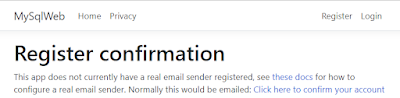
The website then displays the following page that requires that you confirm the email address:


Click on the “Click here to confirm your account” link. This leads you to a confirmation page:


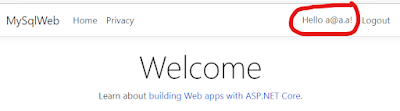
Login with the email address and password that you registered with. You will see a welcome message in the top right-side indicating that you are logged-in.


This proves that your email and password was saved and that the connection to the MySQL database works as expected.

Happy coding.


Saturday, February 5, 2022

ASP.NET 6.0 Web API and Mongo DB

In this tutorial I will show you how to develop an ASP.NET 6.0 API application that interacts with MongoDB. In order to proceed you will need the following pre-requisites:

  • Docker - used to host MongoDB. This is my preferred approach because it is quick and does not take too many resources on the host computer.
  • .NET 6.0
  • Visual Studio Code

The Database

Run the following command in a terminal window to start a MongoDB container named mdb:

docker run -p 27777:27017 --name mgo -d mongo:4.1.6

You can verify that the container is running by typing the following command in a terminal window:

docker ps -a

Let us start a bash session inside the container so that we can create a database and add some sample data to it. Enter the following command to start an interactive bash session inside the container:

docker exec -it mgo bash

We can then use the mongo command line interface (CLI) to create a database and then add some sample data to a collection of students. Type the following command:

mongo

This takes you into a mongo session command prompt. Enter the following command to create a database named school-db:

use school-db

Next, let's create a collection named students and add to it six sample students:

db.Students.insertMany(
[
  {'FirstName':'Sue','LastName':'Fox','School':'Business'},
  {'FirstName':'Tom','LastName':'Max','School':'Mining'},
  {'FirstName':'Ann','LastName':'Lee','School':'Nursing'},
  {'FirstName':'Joe','LastName':'Roy','School':'Tourism'},
  {'FirstName':'Jan','LastName':'Ash','School':'Communications'},
  {'FirstName':'Eva','LastName':'Day','School':'Medicine'},
]);

You can retrieve the list of students with the following command:

db.Students.find({}).pretty();

To exit the mongo command prompt by typing:

exit

You can also exit the bash session and return to the host operating system by typing:

exit

Creating an ASP.NET 6.0 Web API application

Create an ASP.NET 6.0 Web API application. This is accomplished by entering this command:

dotnet new webapi -f net6.0 -o AspMongoApi

Let us see what our application looks like. Run the application by executing:

cd AspMongoApi
dotnet run

The above command builds and runs the application in a web server. Point your browser to https://localhost:????/weatherforecast (Where ???? is your port number). This is what you should see:


Stop the web server by hitting CTRL+C on the keyboard.

Building the Students API

Find the latest version of MongoDB driver from https://www.nuget.org/packages/MongoDB.Driver/. At the time of writing, the latest version was 2.14.1. Add the MongoDB driver Nuget package with the following command:

dotnet add package MongoDB.Driver --version 2.14.1

Now that we have the driver, we can proceed with coding our API. I will use Visual Studio Code because it is operating system agnostic. To load your application workspace into VS Code, simply type in the following command from the root folder of your application:

code .

We need a Student class to represent the schema for student documents in the Students collection in the MongoDB school-db database. Create a Models folder. Inside the Models folder, add a file named Student.cs with the following code:

using MongoDB.Bson;
using MongoDB.Bson.Serialization.Attributes;

namespace AspMongoApi.Models;
public class Student {
    [BsonId]
    [BsonRepresentation(BsonType.ObjectId)]
    public string? Id { get; set; }
    public string? FirstName { get; set; }
    public string? LastName { get; set; }
    
    [BsonElement("School")]
    public string? Department { get; set; }
}

In the preceding class, the Id property:
  • Is required for mapping the Common Language Runtime (CLR) object to the MongoDB collection.
  • Is annotated with [BsonId] to designate this property as the document's primary key.
  • Is annotated with [BsonRepresentation(BsonType.ObjectId)] to allow passing the parameter as type string instead of an ObjectId structure. Mongo handles the conversion from string to ObjectId.
The Department property is annotated with the [BsonElement] attribute. The attribute's value of School represents the property name in the MongoDB collection.
Add the following to appsettings.json:

"StudentDbSettings": {
"CollectionName": "Students",
"ConnectionString": "mongodb://localhost:27777",
"DatabaseName": "school-db"
},

The entire contents of appsettings.json will look like this:

{
  "StudentDbSettings": {
    "CollectionName": "Students",
    "ConnectionString": "mongodb://localhost:27777",
    "DatabaseName": "school-db"
  },
  "Logging": {
    "LogLevel": {
      "Default": "Information",
      "Microsoft.AspNetCore": "Warning"
    }
  },
  "AllowedHosts": "*"
}

Add StudentDbSettings.cs to the Models folder with this code:

namespace AspMongoApi.Models;

public class StudentsDbSettings {
    public string ConnectionString { get; set; } = null!;
    public string DatabaseName { get; set; } = null!;
    public string CollectionName { get; set; } = null!;
}

The above StudentDbSettings class is used to store the appsettings.json file's StudentDbSettings property values. The JSON and C# property names are named identically to simplify the mapping process.

Add the following code to Program.cs before "var app = builder.Build();" :

builder.Services.Configure<StudentsDbSettings>(
    builder.Configuration.GetSection("StudentDbSettings"));

In the above code, the configuration instance to which the appsettings.json file's StudentDatabaseSettings section binds is registered in the Dependency Injection (DI) container.

Create a folder named Services and add to it a file named StudentService.cs with the following code:

namespace AspMongoApi.Services;

public class StudentsService {
    private readonly IMongoCollection<Student> _studentsCollection;

    public StudentsService(IOptions<StudentsDbSettings> studentsDatabaseSettings) {
        var mongoClient = new MongoClient(
            studentsDatabaseSettings.Value.ConnectionString);

        var mongoDatabase = mongoClient.GetDatabase(
            studentsDatabaseSettings.Value.DatabaseName);

        _studentsCollection = mongoDatabase.GetCollection<Student>(
            studentsDatabaseSettings.Value.CollectionName);
    }

    public async Task<List<Student>> GetAsync() =>
        await _studentsCollection.Find(_ => true).ToListAsync();

    public async Task<Student?> GetAsync(string id) =>
        await _studentsCollection.Find(x => x.Id == id).FirstOrDefaultAsync();

    public async Task CreateAsync(Student newStudent) =>
        await _studentsCollection.InsertOneAsync(newStudent);

    public async Task UpdateAsync(string id, Student updatedStudent) =>
        await _studentsCollection.ReplaceOneAsync(x => x.Id == id, updatedStudent);

    public async Task RemoveAsync(string id) =>
        await _studentsCollection.DeleteOneAsync(x => x.Id == id);
}

In the above code, an StudentsDbSettings instance is retrieved from DI via constructor injection. Also, the above class knows how to connect to the MongoDB server and use the available driver methods to retrieve, insert, update and delete data.

To register the StudentService class with DI to support constructor injection, add the following to Program.cs before "var app = builder.Build();" :

builder.Services.AddSingleton<StudentsService>();

Add a StudentsController.cs class to the Controllers folder with the following code:

namespace AspMongoApi.Controllers;

[ApiController]
[Route("api/[controller]")]
public class StudentsController : ControllerBase {
    private readonly StudentsService _studentsService;

    public StudentsController(StudentsService studentsService) =>
        _studentsService = studentsService;

    [HttpGet]
    public async Task<List<Student>> Get() =>
        await _studentsService.GetAsync();

    [HttpGet("{id:length(24)}")]
    public async Task<ActionResult<Student>> Get(string id) {
        var student = await _studentsService.GetAsync(id);

        if (student is null) {
            return NotFound();
        }

        return student;
    }

    [HttpPost]
    public async Task<IActionResult> Post(Student newStudent) {
        await _studentsService.CreateAsync(newStudent);

        return CreatedAtAction(nameof(Get), new { id = newStudent.Id }, newStudent);
    }

    [HttpPut("{id:length(24)}")]
    public async Task<IActionResult> Update(string id, Student updatedStudent) {
        var student = await _studentsService.GetAsync(id);

        if (student is null) {
            return NotFound();
        }

        updatedStudent.Id = student.Id;

        await _studentsService.UpdateAsync(id, updatedStudent);

        return NoContent();
    }

    [HttpDelete("{id:length(24)}")]
    public async Task<IActionResult> Delete(string id) {
        var student = await _studentsService.GetAsync(id);

        if (student is null) {
            return NotFound();
        }

        await _studentsService.RemoveAsync(student.Id!);

        return NoContent();
    }
}

The StudentsController class:
  • Uses the StudentService class to perform CRUD operations.
  • Contains action methods to support GET, POST, PUT, and DELETE HTTP requests.

Running the application

Start the application by executing the this command from a terminal windows at the root of the application:

dotnet run

You can view the data by pointing your browser to https://localhost:????/api/Students. This is the expected output:


Note that even though the last field is named School in the database, it appears as Department in our app because that is how we mapped it in the Student class.

Go ahead and test the other API endpoints for POST, PUT and DELETE using your favourite tool like Postman or curl. It should all work.

Cleanup

To stop & remove the MongoDB docker container, enter the following from any terminal window on your computer:

docker rm -f mgo

I hope you learned something new in this tutorial. Until next time, happy coding.

Reference:https://referbruv.com/blog/posts/integrating-mongodb-with-aspnet-core-(net-6)

docker-compose with MySQL pomelo driver and ASP.NET 7.0

It is customary to develop ASP.NET with either SQL Server or SQLite databases. How about if you want to use the popular MySQL database server? This article discussed one approach to making this possible by having your ASP.NET 7.0 development environment connect with MySQL running in a docker container.

Source code: https://github.com/medhatelmasry/AspMySQL-docker-compose

This article assumes the following:

  1. You have .NET 7.0 installed on your computer. 
  2. You have Docker Desktop installed on your computer.
  3. You have the dotnet-ef tool installed. 

Let's get started.

Setting up the mariadb:10.7.3 container

To download the MySQL version 8.0.0 image from Docker Hub and run it on your local computer, type the following command from within a terminal window:

docker run -p 3333:3306 --name db -e MYSQL_ROOT_PASSWORD=secret -d mariadb:10.7.3

This starts a container named db that listens on port 3333 on your local computer. The root password is secret.

To ensure that the MySQL container is running, type the following from within a terminal window:

docker ps

You will see a message like the following:

CONTAINER ID   IMAGE         COMMAND                  CREATED        STATUS        PORTS                    NAMES

67335fb804e4   mariadb:10.7.3                     "docker-entrypoint.s…"   5 seconds ago   Up 3 seconds   0.0.0.0:3333->3306/tcp

Creating our ASP.NET 7.0 MVC App

The first step is to create a working directory somewhere on your computer's hard drive. I did so by creating a folder named AspMySQL with the following terminal command:

mkdir AspMySQL

Thereafter, go into the new folder with:

cd AspMySQL

We will create an ASP.NET 7.0 application that uses individual authentication with the following command:

dotnet new mvc -f net7.0 --auth individual

To run the web application and see what it looks like, enter the following command:

dotnet run

You will see a message in the terminal window that resembles the following:

info: Microsoft.Hosting.Lifetime[14]
      Now listening on: https://localhost:7042
info: Microsoft.Hosting.Lifetime[14]
      Now listening on: http://localhost:5035
info: Microsoft.Hosting.Lifetime[0]
      Application started. Press Ctrl+C to shut down.
info: Microsoft.Hosting.Lifetime[0]
      Hosting environment: Development
info: Microsoft.Hosting.Lifetime[0]
      Content root path: /Users/medhatelmasry/AspMySQL/

The above message indicates that the Kestrel web server is running and listening on port 7042. The port number you get is probably different. Start your browser with the appropriate URL. You should see a page that looks like this:


Look into the root folder of the project, you will find a file named app.db. This is an SQLite database file. The web application that we scaffolded is configured to work with SQLite. We will change it so that it works with the popular MySQL database instead. Go ahead and delete app.db.

Close your browser and stop the web server in the terminal window by hitting CTRL + C.

There is only one NuGet package that is needed to talk to MySQL. Add the package by typing the following command from within a terminal window:

dotnet add package Pomelo.EntityFrameworkCore.MySql -v 7.0.0

Let us configure our web application to use MySQL instead of SQLite. Open the Program.cs file in your favourite editor and comment out (or delete) the following statements found at around line 8:

var connectionString = builder.Configuration.GetConnectionString("DefaultConnection");
builder.Services.AddDbContext<ApplicationDbContext>(options =>
    options.UseSqlite(connectionString));

Replace the above code with the following:

var host = builder.Configuration["DBHOST"] ?? "localhost";
var port = builder.Configuration["DBPORT"] ?? "3333";
var password = builder.Configuration["DBPASSWORD"] ?? "secret";
var db = builder.Configuration["DBNAME"] ?? "test-db";
var user = builder.Configuration["DBUSER"] ?? "root";

string connectionString = $"server={host}; userid={user}; pwd={password};"
        + $"port={port}; database={db};SslMode=none;allowpublickeyretrieval=True;";

var serverVersion = new MySqlServerVersion(new Version(10,7,3));

builder.Services.AddDbContext<ApplicationDbContext>(options =>
    options.UseMySql(connectionString, serverVersion));

Five environment variables are used in the database connection string. These are: DBHOST, DBPORT , DBPASSWORD, DBNAME and DBUSER. If these environment variables are not found then they will take up default values: localhost, 3333, secret, test-db and test-dbroot respectively.

Entity Framework Migrations

The migration files that were created in the /Data/Migrations folder contain commands for creating SQLite artifacts. These are not valid in our situation because we will be using MySQL and not SQLite. Therefore, delete the Migrations folder under /Data and create new migrations with the following command:

dotnet-ef migrations add M1 -o Data/Migrations

We can instruct our application to automatically process any outstanding Entity Framework migrations. This is done by adding the following statement to Program.cs right before the last app.Run() statement:

using (var scope = app.Services.CreateScope()) {
    var services = scope.ServiceProvider;

    var context = services.GetRequiredService<ApplicationDbContext>();    
    context.Database.Migrate();
}

Test our app

Now, let us test our web app and see whether or not it is able to talk to the containerized MySQL database server. 

Run the web application with the following terminal command:

dotnet run

If all goes well, you will see a message that indicates that the web server is listening on some random port number. Point your browser to http://localhost:???? (where ???? is your port number). The same web page will appear as before. Click on the Register link on the top right side.

I entered an Email, Password and Confirm password, then clicked on the Register button. The website then displays the following page that requires that you confirm the email address:


Click on the “Click here to confirm your account” link. This leads you to a confirmation page:


Login with the email address and password that you registered with.


The message on the top right side confirms that the user was saved and that communication between the ASP.NET MVC app and MySQL is working as expected.

Dockeri-zing solution

We will generate the release version of the application by executing the following command from a terminal window in the root directory of your web app:

dotnet publish -o dist

The above command instructs the dotnet utility to produce the release version of the application in the dist directory.

If you inspect the dist directory, you will see content similar to the following:


The highlighted file in the above image is the main DLL file that is the entry point into the web application.

Let us run the release version of the web app. To do this, change to the dist directory with the following terminal instruction:

cd dist

You can then run your main DLL file. In my case, this file is AspMySQL.dll. I executed the following command:

dotnet AspMySQL.dll

This displays the familiar messages from the web server that the app is ready to be accessed from a browser. Hit CTRL C to stop the web server.

We now have a good idea about what ASP.NET 7.0 artifacts need to be copied into a container. We shall simply copy contents of the dist directory into a Docker image that has the .NET 7.0 runtime.

Stop the web server by hitting CTRL C in the terminal window.

Also, in a terminal window, stop and remove the MySQL container with:

docker rm -f db

Return to the root directory of your project by typing the following in a terminal window:

cd ..

We need to create a docker image that will contain the .NET 7.0 runtime. A suitable image for this purpose is: mcr.microsoft.com/dotnet/aspnet:7.0

Create a text file named Dockerfile and add to it the following content:

FROM mcr.microsoft.com/dotnet/aspnet:7.0
COPY dist /app
WORKDIR /app
          ENV ASPNETCORE_URLS http://+:80
EXPOSE 80/tcp
ENTRYPOINT ["dotnet", "AspMySQL.dll"]

Above are instructions to create a Docker image that will contain our ASP.NET application. I describe each line below:

FROM mcr.microsoft.com/dotnet/aspnet:7.0Base image mcr.microsoft.com/dotnet/aspnet:7.0 will be used
COPY dist /appContents of the dist directory on the host computer will be copied to directory /app in the container
WORKDIR /appThe working directory in the container is /app
EXPOSE 80/tcpPort 80 will be exposed in the container
ENTRYPOINT ["dotnet", "AspMySQL.dll"]The main ASP.NET web app will be launched by executing "dotnet AspMySQL.dll"

We will next compose a docker yml file that orchestrates the entire system which involves two containers: a MySQL database server container and a container that holds our application. In the root folder of your application, create a text file named docker-compose.yml and add to it the following content:

version: '3.8'

volumes:
  datafiles:

services:
  db:
    image: mariadb:10.7.3 
    volumes:
      - datafiles:/var/lib/mysql
    #restart: always
    environment:
      MYSQL_ROOT_PASSWORD: secret
      MYSQL_TCP_PORT: 3306

  webapp:
    build:
      context: .
    depends_on:
      - db
    ports:
      - "8888:80"
    #restart: always
    environment:
      - DBHOST=db
      - DBPORT=3306
      - DBPASSWORD=secret
      - DBNAME=bingo-db
      - ASPNETCORE_ENVIRONMENT=Development


Below is an explanation of what this file does.

We will be having two containers. Each container is considered a service. The first service is named db and will host MySQL. The second service is named webapp and will host our ASP.NET web app.

The most current version of docker-compose is version 3.8. This is the first line in our docker-compose file.

The MySQL Container

Image mariadb:10.7.3 will be used for the MySQL container.

A volume named datafiles is declared that will host MySQL data outside of the container. This ensures that even if the MySQL container is decommissioned, data will not be lost.

restart: always is so that if the container stops, it will be automatically restarted.

The root password will be secret when MySQL is configured. This is set by the MYSQL_ROOT_PASSWORD environment variable.

The ASP.NET Web Application Container

The container will be built using the instructions in the Dockerfile file and the context used is the current directory.

depends_on indicates that the web app relies on the MySQL container (db) to properly function.

Port 80 in the mvc container is mapped to port 8888 on the host computer.

The environment variables needed by the web app are:

DBHOSTpoints to the MySQL service
DBPORTShould be set to 3306 because it is the depault port # that MySQL listens on
DBPASSWORDthis is the root password for MySQL
DBNAMEWe shall call the database for our web app bingo
ASPNETCORE_ENVIRONMENTset to Development more. In reality, you should change this to Production one you determine that your web app container works as expected.

Running the yml file

To find out if this all works, go to a terminal window and run the following command:

docker-compose up

Point your browser to http://localhost:8888/ and you should see the main web page. 


NOTE: If you cannot view the home page, check that the web container is running. If it is stopped then start it with docker start …

To ensure that the database works properly, register a user by clicking on the Register link in the top right corner.


You will then receive a “Register Confirmation”:


Click on the “Click here to confirm your account” so that the app accepts the email address that was used. On the “Confirm Email” page. 


Login with the account you created.


As you can see in the top-right corner, the user with email a@a.a has been successfully registered.


This opens a whole new world for containerizing your ASP.NET web apps.

Cleanup

Hit CTRL C in the terminal window to stop docker-compose, then run the following command:

docker-compose down