Showing posts with label EF. Show all posts

Thursday, March 12, 2026

Function Calling with Microsoft Agent Framework, C#, & Entity Framework

In this article, we will create a Microsoft Agentic Framework plugin that contains four functions that interact with live SQLite data. Entity Framework will be used to access the SQLite database. The end result is to use the powers of the OpenAI natural language models to ask questions and get answers about our custom data.

Source Code: https://github.com/medhatelmasry/EfFuncCallMAF

Pre-requisites

  • You will be using AI models hosted on GitHub. Therefore, you will need to obtain a personal access token from GitHub.
  • .NET Framework 10.0+

Getting Started

Let’s start by creating an ASP.NET Razor pages web application. Select a suitable working folder on your computer, then enter the following terminal window commands:

dotnet new razor --auth individual -o EfFuncCallMAF
cd EfFuncCallMAF

Te above creates a Razor Pages app with support for Entity Framework and SQLite.

Add these packages:

dotnet add package CsvHelper
dotnet add package Microsoft.Agents.AI.OpenAI --prerelease 
dotnet add package Microsoft.AspNetCore.Diagnostics.EntityFrameworkCore
dotnet add package Microsoft.AspNetCore.Identity.EntityFrameworkCore
dotnet add package Microsoft.AspNetCore.Identity.UI
dotnet add package Microsoft.EntityFrameworkCore.Sqlite

The CsvHelper package will help us load a list of products from a CSV file named students.csv and hydrate a list of Student objects. The second package is needed to work with Microsoft Agent Framework. The rest of the packages support Identity, Entity Framework and SQLite.

Let’s Code

appsettings.json

Add these to appsettings.json:

"GitHub": {
  "Token": "PUT-GITHUB-PERSONAL-ACCESS-TOKEN-HERE",
  "ApiEndpoint": "https://models.github.ai/inference",
  "Model": "openai/gpt-4o-mini"
}

Of course, you need to adjust the Token setting with your GitHub personal access token.

Data

Create a folder named Models. Inside the Models folder, add the following Student class: 

public class Student {
   public int StudentId { get; set; }

   [Display(Name = "First Name")]
   [Required]
   public string? FirstName { get; set; }

   [Display(Name = "Last Name")]
   [Required]
   public string? LastName { get; set; }

   [Required]
   public string? School { get; set; }
 
   public override string ToString() {
      return $"Student ID: {StudentId}, First Name: {FirstName}, Last Name: {LastName}, School: {School}";
   }
}

Developers like having sample data when building data driven applications. Therefore, we will create sample data to ensure that our application behaves as expected. Copy CSV data from this link and save it to a text file wwwroot/students.csv.

Add the following code inside the Data/ApplicationDbContext class located inside the Data folder:

public DbSet<Student> Students => Set<Student>();    
 
protected override void OnModelCreating(ModelBuilder modelBuilder) {
    base.OnModelCreating(modelBuilder);
    modelBuilder.Entity<Student>().HasData(LoadStudents());
}  
 
// Load students from a csv file named students.csv in the wwwroot folder
public static List<Student> LoadStudents() {
    var students = new List<Student>();
    using (var reader = new StreamReader(Path.Combine("wwwroot", "students.csv"))) {
        using var csv = new CsvReader(reader, CultureInfo.InvariantCulture);
        students = csv.GetRecords<Student>().ToList();
    }
    return students;
}

Let us add a migration and subsequently update the database. Execute the following CLI commands in a terminal window.

dotnet ef migrations add M1 -o Data/Migrations
dotnet ef database update

At this point the database and tables are created in a SQLite database named app.db.

Helper Methods

We need a couple of static helper methods to assist us along the way. In the Models folder, add a class named Utils and add to it the following class definition:

public class Utils {
  public static string GetConfigValue(string config) {
    IConfigurationBuilder builder = new ConfigurationBuilder();
    if (System.IO.File.Exists("appsettings.json"))
      builder.AddJsonFile("appsettings.json", false, true);
    if (System.IO.File.Exists("appsettings.Development.json"))
      builder.AddJsonFile("appsettings.Development.json", false, true);
    IConfigurationRoot root = builder.Build();
    return root[config]!;
  }
 
  public static ApplicationDbContext GetDbContext() {
    var optionsBuilder = new DbContextOptionsBuilder<ApplicationDbContext>();
    var connStr = Utils.GetConfigValue("ConnectionStrings:DefaultConnection");
    optionsBuilder.UseSqlite(connStr);
    ApplicationDbContext db = new ApplicationDbContext(optionsBuilder.Options);
    return db;
  }
}

Method GetConfigValue() will read values in appsettings.json from any static method. The second GetDbContext() method gets an instance of the ApplicationDbContext class, also from any static method.

Plugins

Create a folder named Plugins and add to it the following class file named StudentPlugin.cs with this code:

public class StudentPlugin {
  [Description("Get student details by first name and last name")]
  public static string? GetStudentDetails(
    [Description("student first name, e.g. Kim")]
    string firstName,
    [Description("student last name, e.g. Ash")]
    string lastName
  ) {
      var db = Utils.GetDbContext();
      var studentDetails = db.Students
        .Where(s => s.FirstName == firstName && s.LastName == lastName).FirstOrDefault();
      if (studentDetails == null)
          return null;
      return studentDetails.ToString();
  }

  [Description("Get students in a school given the school name")]
  public static string? GetStudentsBySchool(
  [Description("The school name, e.g. Nursing")]
  string school
  ) {
      var studentsBySchool = Utils.GetDbContext().Students
        .Where(s => s.School == school).ToList();
      if (studentsBySchool.Count == 0)
          return null;
      return JsonSerializer.Serialize(studentsBySchool);
  }


  [Description("Get the school with most or least students. Takes boolean argument with true for most and false for least.")]
  static public string? GetSchoolWithMostOrLeastStudents(
  [Description("isMost is a boolean argument with true for most and false for least. Default is true.")]
  bool isMost = true
  ) {
      var students = Utils.GetDbContext().Students.ToList();
      IGrouping<string, Student>? schoolGroup = null;
      if (isMost)
          schoolGroup = students.GroupBy(s => s.School)
              .OrderByDescending(g => g.Count()).FirstOrDefault()!;
      else
          schoolGroup = students.GroupBy(s => s.School)
              .OrderBy(g => g.Count()).FirstOrDefault()!;
      if (schoolGroup != null)
          return $"{schoolGroup.Key} has {schoolGroup.Count()} students";
      else
          return null;
  }

  [Description("Get students grouped by school.")]
  static public string? GetStudentsInSchool() {
      var students = Utils.GetDbContext().Students.ToList().GroupBy(s => s.School)
        .OrderByDescending(g => g.Count());
      if (students == null)
          return null;
      else
          return JsonSerializer.Serialize(students);
  }
}

 In the above code, there are four methods with these purposes:

GetStudentDetails()Gets student details given first and last names
GetStudentsBySchool()Gets students in a school given the name of the school
GetSchoolWithMostOrLeastStudents()Takes a Boolean value isMost – true returns school with most students and false returns school with least students.
GetStudentsInSchool()Takes no arguments and returns a count of students by school.

Registering the Chat Client

In the Program.cs file, add the following code to register the MAF chat client so it is available for dependency injecton. The code goes before the "var app = builder.Build();" statement.

string? apiKey = builder.Configuration["GitHub:Token"];
string? model = builder.Configuration["GitHub:Model"] ?? "openai/gpt-4o-mini";
string? endpoint = builder.Configuration["GitHub:ApiEndpoint"] ?? "https://models.github.ai/inference";

builder.Services.AddSingleton<IChatClient>(_ =>
    new OpenAIClient(
        new ApiKeyCredential(apiKey!),
        new OpenAIClientOptions { Endpoint = new Uri(endpoint!) }
    ).GetChatClient(model!).AsIChatClient()
);

The User Interface

We will re-purpose the Index.cshtml and Index.cshtml.cs files so the user can enter a prompt in natural language and receive a response that comes from the OpenAI model working with our Microsoft Agent Framework plugin. 

Index.chtml.cs

Replace the IndexModel class definition in Pages/Index.cshtml.cs with:

public class IndexModel : PageModel {
  private readonly ILogger<IndexModel> _logger;
  private readonly IChatClient _chatClient;

  [BindProperty]
  public string? Reply { get; set; }

  public IndexModel(ILogger<IndexModel> logger, IChatClient chatClient) {
    _logger = logger;
    _chatClient = chatClient;
  }
  public void OnGet() { }
  // action method that receives prompt from the form
  public async Task<IActionResult> OnPostAsync(string prompt) {
    var response = await CallFunction(prompt);
    Reply = response;
    return Page();
  }

  private async Task<string> CallFunction(string question) {
    // Create tools from StudentPlugin methods
    var tools = new List<AITool> {
      AIFunctionFactory.Create(StudentPlugin.GetStudentDetails),
      AIFunctionFactory.Create(StudentPlugin.GetStudentsBySchool),
      AIFunctionFactory.Create(StudentPlugin.GetSchoolWithMostOrLeastStudents),
      AIFunctionFactory.Create(StudentPlugin.GetStudentsInSchool),
    };

    // Create the AI agent with tools
    var agent = _chatClient.AsAIAgent(
      instructions: "You are a helpful assistant that can look up student information.",
      name: "StudentAgent",
      tools: tools
    );

    // Run streaming and collect the response
    string fullMessage = "";
    await foreach (var update in agent.RunStreamingAsync(question)) {
      if (!string.IsNullOrEmpty(update.Text)) {
        fullMessage += update.Text;
      }
    }
    return fullMessage;
  }
}

In the above code, the prompt entered by the user is posted to the OnPostAsync() method. The prompt is then passed to the CallFunction() method, which returns the final response from Azure OpenAI.

The CallFunction() method sets up the AI agent with tools.

Note that the IChatClient object is available through dependency injection

All the tools (or plugins) are loaded into a list of AITool objects.

Index.chtml

Replace the content of Pages/Index.cshtml with:

@page
@model IndexModel
@{
    ViewData["Title"] = "Function Calling with Microsoft Agent Framework";
}
<div class="text-center">
    <h3 class="display-6">@ViewData["Title"]</h3>
    <form method="post">
        <input type="text" name="prompt" size="80" required />
        <input type="submit" value="Submit" />
    </form>
    <div style="text-align: left">
        <h5>Example prompts:</h5>
        <p>Which school does Mat Tan go to?</p>
        <p>Which school has the most students?</p>
        <p>Which school has the least students?</p>
        <p>Get the count of students in each school.</p>
        <p>How many students are there in the school of Mining?</p>
        <p>What is the ID of Jan Fry and which school does she go to?</p>
        <p>Which students belong to the school of Business? Respond only in JSON format.</p>
        <p>Which students in the school of Nursing have their first or last name start with the letter 'J'?</p>
    </div>
    @if (Model.Reply != null)
    {
        <p class="alert alert-success" id="reply">@Model.Reply</p>
    }
</div>

The above markup displays an HTML form that accepts a prompt from a user. The prompt is then submitted to the server and the response is displayed in a paragraph (<p> tag) with a green background (Bootstrap class alert-success).

Meantime, at the bottom of the page there are some suggested prompts to facilitate testing – namely:

Which school does Mat Tan go to?
Which school has the most students?
Which school has the least students?
Get the count of students in each school.
How many students are there in the school of Mining?
What is the ID of Jan Fry and which school does she go to?
Which students belong to the school of Business? Respond only in JSON format.
Which students in the school of Nursing have their first or last name start with the letter 'J'?

Trying the application

In a terminal window, at the root of the Razor Pages web application, enter the following command:

dotnet watch

The following page will display in your default browser:

You can enter any of the suggested prompts to ensure we are getting the proper results. I entered the last prompt and got these results:


Conclusion

We have seen how The Micrsoft Agenr Framework and Function Calling can be used with data coming from a database. In this example we are using SQLite. However, any other database can be used using the same technique.

Tuesday, January 28, 2025

Built-in token authentication with ASP.NET Core 9.0 Minimal WebAPI

In this tutorial I will showcase the built-in WebApi token authentication. To keep it simple, we shall persist our data in the lightweight SQLite database.

Prerequisites

It is assumed that you have installed the following on your computer:
  • .NET 9.0
  • Visual Studio Code editor

Getting Started

In a suitable working directory, create a new WebApi application using the following terminal window command:

dotnet new webapi --name WebApiTokenAuth

Change directory with:

cd WebApiTokenAuth

We will need to add some packages. Also in the same terminal window, run the following commands:

dotnet add package Microsoft.AspNetCore.Identity.EntityFrameworkCore

dotnet add package Microsoft.EntityFrameworkCore.Sqlite

dotnet add package Microsoft.EntityFrameworkCore.Tools

dotnet add package Microsoft.EntityFrameworkCore.Design

dotnet add package Swashbuckle.AspNetCore

The above packages allow us to use SQLite and Entity Framework. The last package (Swashbuckle.AspNetCore) will be used to provide a default Swagger UI.

Make sure you have the dotnet-ef tool. If you do not, you can globally install it with:

dotnet tool install --global dotnet-ef

If you already have the dotnet-ef, update your version to the latest with:

dotnet tool update --global dotnet-ef

Let us first add Swagger UI to our WebAPI application so that we can easily test our API endpoints. Open your source code with Visual Studio Code by executing the following statement from a terminal window inside the root folder of the application:

code .

You can now add the following statement right under app.MapOpenApi():

app.UseSwaggerUI(options =>  {
    options.SwaggerEndpoint("/openapi/v1.json", "My WebAPI");
});

Edit file Properties/launchSettings.json. In both http and https blocks, change the value of launchBrowser to true.

Also, in both http & https blocks, add the following setting:

"launchUrl": "swagger"

Let us run our web app and see what it does. Run the web app with:

dotnet watch

This gets loaded into your default browser:


Click on GET >> Try it out >> Execute. This will produce the following output:


Database context class

Since we will be using Entity Framework to talk to the SQLite database, we will need a database context class. Add a folder named Data, then add to it a class named ApplicationDbContext that derives from IdentityDbContext<IdentityUser> with the following code:

public class ApplicationDbContext: IdentityDbContext<IdentityUser> {
    public ApplicationDbContext(DbContextOptions<ApplicationDbContext> options) : base(options)
    {}
}

Add the following connection string to appsettings.json:

"ConnectionStrings": {
  "DefaultConnection": "Data Source=webapi-auth.db;"
}

Next, we must register ApplicationDbContext with our app by adding the following code into Program.cs right before 'var app = builder.Build();':

// Configure identity database access via EF Core
var connectionString = builder.Configuration.GetConnectionString("DefaultConnection") ?? throw new InvalidOperationException("Connection string 'DefaultConnection' not found.");
builder.Services.AddDbContext<ApplicationDbContext>(options =>
    options.UseSqlite(connectionString));

Other required services

Add the following code right after the above code:

// Authorization
builder.Services.AddAuthorization();

// Activate identity APIs. By default, both cookies and proprietary tokens
// are activated. Cookies will be issued based on the 'useCookies' querystring
// parameter in the login endpoint
builder.Services.AddIdentityApiEndpoints<IdentityUser>()
    .AddEntityFrameworkStores<ApplicationDbContext>();

We need to add authorization and authentication middleware with the following code right after 'app.UseHttpsRedirection();':

app.UseAuthentication(); 
app.UseAuthorization(); 

Let us secure the /weatherforecast endpoint by forcing authentication. Chain the following to the endpoint by adding this code right under '.WithOpenApi()':

.RequireAuthorization();

The full app.MapGet() code will look like this:

app.MapGet("/weatherforecast", () =>
{
    var forecast =  Enumerable.Range(1, 5).Select(index =>
        new WeatherForecast
        (
            DateOnly.FromDateTime(DateTime.Now.AddDays(index)),
            Random.Shared.Next(-20, 55),
            summaries[Random.Shared.Next(summaries.Length)]
        ))
        .ToArray();
    return forecast;
})
.WithName("GetWeatherForecast")
.WithOpenApi()
.RequireAuthorization();

Adding Identity API endpoints

Add the identity endpoints to your app by calling MapIdentityApi<IdentityUser>(). Add the following code to Program.cs right before 'app.Run();':

app.MapIdentityApi<IdentityUser>();

Migrations

Since our app uses EF Core, we will create a migration in the Data folder and update the database. Run the following terminal commands:

dotnet ef migrations add M1 -o Data/Migrations

dotnet ef database update

You will notice that a SQLite database file is created named webapi-auth.db.

Try it out

Let us test our application to see whether or not we have indeed succeeded in securing our API endpoint. Start your app with:

dotnet watch

You will see a variety of identity related endpoints when the following page gets loaded into your default browser:


Try to hit the /weatherforecast endpoint and see the data. You will encounter a 401 (unauthorized) error:

Let us register a user. Click on the /register endpoint then click on the "Try it out" button. Update the JSON object so it looks like this:

{
  "email": "a@a.a",
  "password": "P@$$w0rd"
}

Click on the Execute button. You will get a Code 200 response representing success:


Next, let us login with the credentials we created. Click on the /login endpoint, then click on the "Try it out" button.


Choose true for useCookies and update the JSON object so it only has the credentials we had previously created. Thereafter, click on the Execute button. You should get a code 200 response:

Now let's try getting the data using the GET /weatherforecast endpoint. It should be a relief that we can now see the weather forecast information.

Conclusion

With ASP.NET Core 9.0 we need to follow these steps:
  • restore Swagger UI
  • configure our WebAPI application with the built in ,NET token authentication capability

Thursday, February 29, 2024

OpenAI Function Calling with Semantic Kernel, C#, & Entity Framework

In this article, we will create a Semantic Kernel plugin that contains four functions that interact with live SQLite data. Entity Framework will be used to access the SQLite database. The end result is to use the powers of the OpenAI natural language models to ask questions and get answers about our custom data.

Source code: https://github.com/medhatelmasry/EfFuncCallSK

Companion Video: https://youtu.be/4sKRwflEyHk

Getting Started

Let’s start by creating an ASP.NET Razor pages web application. Select a suitable working folder on your computer, then enter the following terminal window commands:

dotnet new razor --auth individual -o EfFuncCallSK
cd EfFuncCallSK

Te above creates a Razor Pages app with support for Entity Framework and SQLite.

Add these packages:

dotnet add package CsvHelper
dotnet add package Microsoft.SemanticKernel 
dotnet add package Microsoft.EntityFrameworkCore.Design
dotnet add package Microsoft.EntityFrameworkCore.Tools
dotnet add package Microsoft.EntityFrameworkCore
dotnet add package Microsoft.EntityFrameworkCore.SQLite.Design

The CsvHelper package will help us load a list of products from a CSV file named students.csv and hydrate a list of Student objects. The second package is needed to work with Semantic Kernel. The rest of the packages support Entity Framework and SQLite.

Let’s Code

appsettings.json

Add these to appsettings.json:

"AIService": "OpenAI", /* Azure or OpenAI */
"AzureOpenAiSettings": {
   "Endpoint": "https://YOUR_RESOURCE_NAME.openai.azure.com/",
   "Model": "gpt-35-turbo",
   "ApiKey": "fake-key-fake-key-fake-key-fake-key"
},
"OpenAiSettings": {
  "ModelType": "gpt-3.5-turbo",
  "ApiKey": "fake-key-fake-key-fake-key-fake-key"
}

The first setting allows you to choose between using OpenAI or Azure OpenAI.

Of course, you need to adjust the endpoint setting with the appropriate value that pertains to the OpenAI and Azure OpenAI services. Also, enter the correct value for the ApiKey.

NOTE: You can use OpenAI or Azure OpenAI, or both.

Data

Create a folder named Models. Inside the Models folder, add the following Student class: 

public class Student {
   public int StudentId { get; set; }
   public string? FirstName { get; set; }
   public string? LastName { get; set; }
   public string? School { get; set; }
 
   public override string ToString() {
      return $"Student ID: {StudentId}, First Name: {FirstName}, Last Name: {LastName}, School: {School}";
   }
}

Developers like having sample data when building data driven applications. Therefore, we will create sample data to ensure that our application behaves as expected. Copy CSV data from this link and save it to a text file wwwroot/students.csv.

Add the following code inside the ApplicationDbContext class located inside the Data folder:

public DbSet<Student> Students => Set<Student>();    
 
protected override void OnModelCreating(ModelBuilder modelBuilder) {
    base.OnModelCreating(modelBuilder);
    modelBuilder.Entity<Student>().HasData(LoadStudents());
}  
 
// Load students from a csv file named students.csv in the wwwroot folder
public static List<Student> LoadStudents() {
    var students = new List<Student>();
    using (var reader = new StreamReader(Path.Combine("wwwroot", "students.csv"))) {
        using var csv = new CsvReader(reader, CultureInfo.InvariantCulture);
        students = csv.GetRecords<Student>().ToList();
    }
    return students;
}

Let us add a migration and subsequently update the database. Execute the following CLI commands in a terminal window.

dotnet ef migrations add Students -o Data/Migrations
dotnet ef database update

At this point the database and tables are created in a SQLite database named app.db.

Helper Methods

We need a couple of static helper methods to assist us along the way. In the Models folder, add a class named Utils and add to it the following class definition:

public class Utils {
  public static string GetConfigValue(string config) {
    IConfigurationBuilder builder = new ConfigurationBuilder();
    if (System.IO.File.Exists("appsettings.json"))
      builder.AddJsonFile("appsettings.json", false, true);
    if (System.IO.File.Exists("appsettings.Development.json"))
      builder.AddJsonFile("appsettings.Development.json", false, true);
    IConfigurationRoot root = builder.Build();
    return root[config]!;
  }
 
  public static ApplicationDbContext GetDbContext() {
    var optionsBuilder = new DbContextOptionsBuilder<ApplicationDbContext>();
    var connStr = Utils.GetConfigValue("ConnectionStrings:DefaultConnection");
    optionsBuilder.UseSqlite(connStr);
    ApplicationDbContext db = new ApplicationDbContext(optionsBuilder.Options);
    return db;
  }
}

Method GetConfigValue() will read values in appsettings.json from any static method. The second GetDbContext() method gets an instance of the ApplicationDbContext class, also from any static method.

Plugins

Create a folder named Plugins and add to it the following class file named StudentPlugin.cs with this code:

public class StudentPlugin {
  [KernelFunction, Description("Get student details by first name and last name")]
  public static string? GetStudentDetails(
  [Description("student first name, e.g. Kim")]
  string firstName,
  [Description("student last name, e.g. Ash")]
  string lastName
  ) {
    var db = Utils.GetDbContext();
    var studentDetails = db.Students
      .Where(s => s.FirstName == firstName && s.LastName == lastName).FirstOrDefault();
    if (studentDetails == null)
      return null;
    return studentDetails.ToString();
  }

  [KernelFunction, Description("Get students in a school given the school name")]
  public static string? GetStudentsBySchool(
    [Description("The school name, e.g. Nursing")]
    string school
  ) {
    var studentsBySchool = Utils.GetDbContext().Students
      .Where(s => s.School == school).ToList();
    if (studentsBySchool.Count == 0)
      return null;
    return JsonSerializer.Serialize(studentsBySchool);
  }


  [KernelFunction, Description("Get the school with most or least students. Takes boolean argument with true for most and false for least.")]
  static public string? GetSchoolWithMostOrLeastStudents(
    [Description("isMost is a boolean argument with true for most and false for least. Default is true.")]
    bool isMost = true
  ) {
    var students = Utils.GetDbContext().Students.ToList();
    IGrouping<string, Student>? schoolGroup = null;
    if (isMost)
      schoolGroup = students.GroupBy(s => s.School)
          .OrderByDescending(g => g.Count()).FirstOrDefault()!;
    else
        schoolGroup = students.GroupBy(s => s.School)
            .OrderBy(g => g.Count()).FirstOrDefault()!;
    if (schoolGroup != null)
      return $"{schoolGroup.Key} has {schoolGroup.Count()} students";
    else
      return null;
  }

  [KernelFunction, Description("Get students grouped by school.")]
  static public string? GetStudentsInSchool() {
    var students = Utils.GetDbContext().Students.ToList().GroupBy(s => s.School)
      .OrderByDescending(g => g.Count());
    if (students == null)
      return null;
    else
      return JsonSerializer.Serialize(students);
  }
}

 In the above code, there are four methods with these purposes:

GetStudentDetails()Gets student details given first and last names
GetStudentsBySchool()Gets students in a school given the name of the school
GetSchoolWithMostOrLeastStudents()Takes a Boolean value isMost – true returns school with most students and false returns school with least students.
GetStudentsInSchool()Takes no arguments and returns a count of students by school.

The User Interface

We will re-purpose the Index.cshtml and Index.cshtml.cs files so the user can enter a prompt in natural language and receive a response that comes from the OpenAI model working with our semantic kernel plugin. 

Index.chtml

Replace the content of Pages/Index.cshtml with:

@page
@model IndexModel
@{
    ViewData["Title"] = Model.Service + " Function Calling with Semantic Kernel";
}
<div class="text-center">
    <h3 class="display-6">@ViewData["Title"]</h3>
    <form method="post">
        <input type="text" name="prompt" size="80" required />
        <input type="submit" value="Submit" />
    </form>
    <div style="text-align: left">
        <h5>Example prompts:</h5>
        <p>Which school does Mat Tan go to?</p>
        <p>Which school has the most students?</p>
        <p>Which school has the least students?</p>
        <p>Get the count of students in each school.</p>
        <p>How many students are there in the school of Mining?</p>
        <p>What is the ID of Jan Fry and which school does she go to?</p>
        <p>Which students belong to the school of Business? Respond only in JSON format.</p>
        <p>Which students in the school of Nursing have their first or last name start with the letter 'J'?</p>
    </div>
    @if (Model.Reply != null)
    {
        <p class="alert alert-success">@Model.Reply</p>
    }
</div>

The above markup displays an HTML form that accepts a prompt from a user. The prompt is then submitted to the server and the response is displayed in a paragraph (<p> tag) with a green background (Bootstrap class alert-success).

Meantime, at the bottom of the page there are some suggested prompts – namely:

Which school does Mat Tan go to?
Which school has the most students?
Which school has the least students?
Get the count of students in each school.
How many students are there in the school of Mining?
What is the ID of Jan Fry and which school does she go to?
Which students belong to the school of Business? Respond only in JSON format.
Which students in the school of Nursing have their first or last name start with the letter 'J'?

Index.chtml.cs

Replace the IndexModel class definition in Pages/Index.cshtml.cs with:

public class IndexModel : PageModel {
  private readonly ILogger<IndexModel> _logger;
  private readonly IConfiguration _config;
 
  [BindProperty]
  public string? Reply { get; set; }
 
  [BindProperty]
  public string? Service { get; set; }
 
  public IndexModel(ILogger<IndexModel> logger, IConfiguration config) {
    _logger = logger;
    _config = config;
    Service = _config["AIService"]!;
  }
  public void OnGet() { }
  // action method that receives prompt from the form
  public async Task<IActionResult> OnPostAsync(string prompt) {
    // call the Azure Function
    var response = await CallFunction(prompt);
    Reply = response;
    return Page();
  }
 
  private async Task<string> CallFunction(string question) {
    string azEndpoint = _config["AzureOpenAiSettings:Endpoint"]!;
    string azApiKey = _config["AzureOpenAiSettings:ApiKey"]!;
    string azModel = _config["AzureOpenAiSettings:Model"]!;
    string oaiModelType = _config["OpenAiSettings:ModelType"]!;
    string oaiApiKey = _config["OpenAiSettings:ApiKey"]!;
    string oaiModel = _config["OpenAiSettings:Model"]!;
    string oaiOrganization = _config["OpenAiSettings:Organization"]!;
    var builder = Kernel.CreateBuilder();
    if (Service!.ToLower() == "openai")
      builder.Services.AddOpenAIChatCompletion(oaiModelType, oaiApiKey);
    else
      builder.Services.AddAzureOpenAIChatCompletion(azModel, azEndpoint, azApiKey);
    builder.Services.AddLogging(c => c.AddDebug().SetMinimumLevel(LogLevel.Trace));
    builder.Plugins.AddFromType<StudentPlugin>();
    var kernel = builder.Build();
    // Create chat history
    ChatHistory history = [];
    // Get chat completion service
    var chatCompletionService = kernel.GetRequiredService<IChatCompletionService>();
    // Get user input
    history.AddUserMessage(question);
    // Enable auto function calling
    OpenAIPromptExecutionSettings openAIPromptExecutionSettings = new() {
      ToolCallBehavior = ToolCallBehavior.AutoInvokeKernelFunctions
    };
    // Get the response from the AI
    var result = chatCompletionService.GetStreamingChatMessageContentsAsync(
      history,
      executionSettings: openAIPromptExecutionSettings,
      kernel: kernel);
    string fullMessage = "";
    await foreach (var content in result) {
      fullMessage += content.Content;
    }
    // Add the message to the chat history
    history.AddAssistantMessage(fullMessage);
    return fullMessage;
  }
}

In the above code, the prompt entered by the user is posted to the OnPostAsync() method. The prompt is then passed to the CallFunction() method, which returns the final response from Azure OpenAI.

The CallFunction() method reads the OpenAI or Azure OpenAI settings from appsettings.json, depending on the AIService key.

A builder object is created from Semantic Kernel. If we are using OpenAI, then the AddOpenAIChatCompletion service is added. Otherwise, the AddAzureOpenAIChatCompletion service is added.

The StudentPlugin is then added to the builder object Plugins collection.

The builder Build() method is then called returning a kernel object. From the kernel object we then get a chatCompletionService object by calling the GetRequiredService() method.

Thereafter:

  • Add the prompt to the history
  • Make a call to the chat message service and receive a response
  • Concatenate response into a single string
  • Return the concatenated message

Trying the application

In a terminal window, at the root of the Razor Pages web application, enter the following command:

dotnet watch

The following page will display in your default browser:


You can enter any of the suggested prompts to ensure we are getting the proper results. I entered the last prompt and got these results:


Conclusion

We have seen how Semantic Kernel and Function Calling can be used with data coming from a database. In this example we are using SQLite. However, an other database source can be used using the same technique.

Monday, December 11, 2023

Built-in authentication with ASP.NET Core .NET 8.0 Minimal WebAPI

In this tutorial I will showcase the built-in WebApi authentication that was introduced with ASP.NET Core 8.0. To keep it simple, we shall persist our data in the lightweight SQLite database.

Source Code: https://github.com/medhatelmasry/WebApiAuth

Companion Video: https://youtu.be/SSLSNWRQJiA

Prerequisites

It is assumed that you have installed the following on your computer:
  • .NET 8.0
  • Visual Studio Code editor

Getting Started

In a suitable working directory, create a new WebApi application using the following terminal window command:

dotnet new webapi -f net8.0 --name WebApiAuth

Change directory with:

cd WebApiAuth

We will need to add some packages. Also in the same terminal window, run the following commands:

dotnet add package Microsoft.AspNetCore.Identity.EntityFrameworkCore -v 8.0.0
dotnet add package Microsoft.EntityFrameworkCore.Sqlite -v 8.0.0
dotnet add package Microsoft.EntityFrameworkCore.Tools -v 8.0.0
dotnet add package Microsoft.EntityFrameworkCore.Design -v 8.0.0

The above packages allow us to use SQLite and Entity Framework.

Make sure you have the dotnet-ef tool. If you do not, you can globally install it with:

dotnet tool install --global dotnet-ef

If you already have the dotnet-ef, update your version to the latest with:

dotnet tool update --global dotnet-ef

Let us run our web app and have a peek at what it does. Run the web app with:

dotnet watch

This gets loaded into your default browser:


Click on GET >> Try it out >> Execute. This will produce the following output:


It is time for us to peek into the code. Stop the server with CTRL C, then start Visual Studio Code with the following terminal command:

code .

Database context class

Since we will be using Entity Framework to talk to the SQLite database, we will need a database context class. Add a folder named Data, then add to it a class named ApplicationDbContext that derives from IdentityDbContext<IdentityUser> with the following code:

using Microsoft.AspNetCore.Identity;
using Microsoft.AspNetCore.Identity.EntityFrameworkCore;
using Microsoft.EntityFrameworkCore;

namespace WebApiAuth.Data;

public class ApplicationDbContext: IdentityDbContext<IdentityUser> {
    public ApplicationDbContext(DbContextOptions<ApplicationDbContext> options) : base(options)
    {}
}

Add the following connection string to appsettings.json:

"ConnectionStrings": {
  "DefaultConnection": "Data Source=webapi-auth.db;"
}

Next, we must register ApplicationDbContext with our app by adding the following code into Program.cs right before 'var app = builder.Build();':

// Configure identity database access via EF Core
var connectionString = builder.Configuration.GetConnectionString("DefaultConnection") ?? throw new InvalidOperationException("Connection string 'DefaultConnection' not found.");
builder.Services.AddDbContext<ApplicationDbContext>(options =>
    options.UseSqlite(connectionString));

Other required services

Add the following code right after the above code:

// Authorization
builder.Services.AddAuthorization();

// Activate identity APIs. By default, both cookies and proprietary tokens
// are activated. Cookies will be issued based on the 'useCookies' querystring
// parameter in the login endpoint
builder.Services.AddIdentityApiEndpoints<IdentityUser>()
    .AddEntityFrameworkStores<ApplicationDbContext>();

We need to add authorization and authentication middleware with the following code right after 'app.UseHttpsRedirection();':

app.UseAuthentication(); 
app.UseAuthorization(); 

Let us secure the /weatherforecast endpoint by forcing authentication. Chain the following to the endpoint by add ing this code right under '.WithOpenApi()':

.RequireAuthorization();

The full app.MapGet() code will look like this:

app.MapGet("/weatherforecast", () =>
{
    var forecast =  Enumerable.Range(1, 5).Select(index =>
        new WeatherForecast
        (
            DateOnly.FromDateTime(DateTime.Now.AddDays(index)),
            Random.Shared.Next(-20, 55),
            summaries[Random.Shared.Next(summaries.Length)]
        ))
        .ToArray();
    return forecast;
})
.WithName("GetWeatherForecast")
.WithOpenApi()
.RequireAuthorization();

Adding Identity API endpoints

Add the identity endpoints to your app by calling MapIdentityApi<IdentityUser>(). Add the following code to Program.cs right before 'app.Run();':

app.MapIdentityApi<IdentityUser>();

Migrations

Since our app uses EF Core, we will create a migration in the Data folder and update the database. Run the following terminal commands:

dotnet ef migrations add M1 -o Data/Migrations

dotnet ef database update

You will notice that a SQLite database file is created named webapi-auth.db.

Try it out

Let us test our application to see whether or not we have indeed succeeded in securing our API endpoint. Start your app with:

dotnet watch

You will see a variety of identity related endpoints when the following gets loaded into your default browser:


Try to hit the /weatherforecast endpoint and see the data. You will encounter a 401 (unauthorized) error:

Let us register a user. Click on the /register endpoint then click on the "Try it out" button. Update the JSON object so it looks like this:

{
  "email": "a@a.a",
  "password": "P@$$w0rd"
}

Click on the Execute button. You will get a Code 200 response representing success:


Next, let us login with the credentials we created. Click on the /login endpoint, then click on the "Try it out" button.


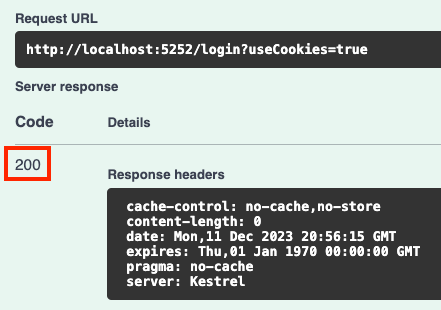
Choose true for useCookies and update the JSON object so it only has the credentials we had previously created. Thereafter, click on the Execute button. You should get a code 200 response:

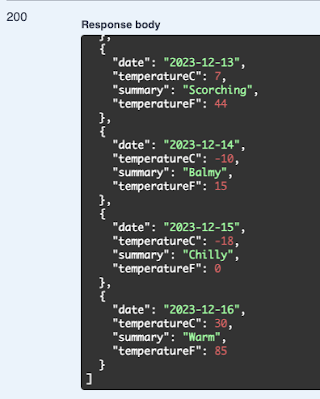
Now let's try getting the data using the GET /weatherforecast endpoint. It should be a relief that we can now see the data.


With ASP.NET Core 8.0 came an easier way for securing WebAPI.