Showing posts with label Medhat Elmasry. Show all posts

Wednesday, January 10, 2024

Build simple C# completion app with Azure OpenAI and Semantic Kernel Tool

In this walkthrough, I will show you how easy it is to use the 'Semantic Kernel Tool' in Visual Studio Code to create a cake baking skill without a single line of code. We will then build a C# console application that uses the skill.

Source: https://github.com/medhatelmasry/sk-library

Companion Video: https://youtu.be/eI5Pr58gFZg

What is Semantic Kernel?

This is the official definition obtained from Create AI agents with Semantic Kernel | Microsoft Learn:

Semantic Kernel is an open-source SDK that lets you easily build agents that can call your existing code. As a highly extensible SDK, you can use Semantic Kernel with models from OpenAI, Azure OpenAI, Hugging Face, and more! 

We now have an extension for Visual Studio Code that makes it very easy to build AI apps that use the large language models (LLMs) available through OpenAI. 

In order to proceed with this tutorial, you will need the following prerequisites:

  1. .NET 8.0 Framework
  2. Visual Studio Code
  3. Access to Azure OpenAI
  4. Install the 'Semantic Kernel Tool' extension into Visual Studio Code.

Getting Started

In a suitable working directory, create a folder named sk-library, change directory into the new folder, then start Visual Studio Code with the following terminal commands:

mkdir sk-library
cd sk-library
code .

In Visual Studio Code, select: View >> Command Palette...

Select "Add AI Endpoint" from the list.
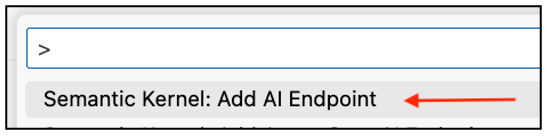
You will get asked to choose between AzureOpenAI and OpenAI. I will choose AzureOpenAI in this example.


The next ask is the name of the model that was created on the Azure portal in the AzureOpenAI service. A suitable model for this completion task is text-davinci-003.

We will be asked to enter the Azure OpenAI Endpoint, which you can obtain from Azure.

Finally, we must enter the Azure OpenAI Key.


If all goes well, you will receive this comforting message.

Create a skill without any coding

We can now create a skill without a single line of code. Create sub-folders Skills/Baking with the following terminal commands:

mkdir Skills
cd Skills 
mkdir Baking
cd ..

Start the "Semantic Kernel" view in Visual Studio Code.

Click on "Add Semantic Skill" tool beside Functions.


Click on "Create a new skill folder for the function".


Choose the Skills/Baking folder.

Enter CakeRecipe for the function name.

A description for the function is required. Enter "Recipe for making a cake" for the description.

Two files get created in the Skills/Baking/CakeRecipe folder: skprompt.txt and config.json. 

skprompt.txt

config.json

Replace contents of skprompt.txt with the following:

I want to bake a fabulous cake. Give me a recipe using the input provided. The cake must be easy, tasty, and cheap. I don't want to spend more than $10 on ingredients. I don't want to spend more than 30 minutes preparing the cake. I don't want to spend more than 30 minutes baking the cake. 

[INPUT]

{{$input}}

[END INPUT]

The above file contains a prompt and a variable {{$input}}. The AI should give us a recipe for the type of cake that is entered to replace the {{$input}} variable.

Testing our baking skill

Creating a skill with the Visual Studio Code 'Semantic Kernel Tool' is painless. We can now test our baking skill. Click on the arrow on the top-right of the panel.


You will be asked to enter a type of cake that you are interested in baking. I entered: chocolate.


If you check the OUTPUT tab at the bottom of Visual Studio Code, you will see the results.


The actual output I received was:

AI Provider: AzureOpenAI
Model: text-davinci-003
Execute: Baking.CakeRecipe
Parameters:
input: chocolate
Prompt:
I want to bake a fabulous cake. Give me a recipe using the input
provided. The cake must be easy, tasty and cheap. I don't want to spend more than
$10 on ingredients. I don't want to spend more than 30 minutes preparing the
cake. I don't want to spend more than 30 minutes baking the cake. 
[INPUT]
chocolate
[END INPUT]
Result:
Easy Chocolate Cake Recipe
Ingredients:
- 1 ½ cups all-purpose flour
- 1 cup granulated sugar
- ¾ cup cocoa powder
- 1 teaspoon baking soda
- ½ teaspoon baking powder
- ½ teaspoon salt
- 2 eggs
- 1 cup buttermilk
- ½ cup vegetable oil
- 1 teaspoon vanilla extract
Instructions:
1. Preheat oven to 350°F. Grease and flour a 9-inch round cake pan.
2. In a large bowl, whisk together the flour, sugar, cocoa powder, baking soda, baking powder, and salt.
3. In a separate bowl, whisk together the eggs, buttermilk, oil, and vanilla extract.
4. Pour the wet ingredients into the dry ingredients and mix until just combined.
5. Pour the batter into the prepared cake pan and bake for 25-30 minutes, or until a toothpick inserted into the center comes out clean.
6. Allow the cake to cool in the pan for 10 minutes before transferring to a wire rack to cool completely.
7. Serve and enjoy!
Tokens:
Input tokens: 88
Output tokens: 237
Total: 325
Duration:
00:00:11.971
========== Function execution was finished. ==========

Using our baking skill in C# console app

Let us first create a console application in the root sk-library folder, with:

dotnet new console

We need to add two packages. One for SemanticKernel and the other is ConfigurationManager that allows us to read from settings in the App.config XML file.

dotnet add package Microsoft.SemanticKernel
dotnet add package System.Configuration.ConfigurationManager

Create a file named App.config in the root folder of the console application and add to it the important parameters that allow access to your Azure OpenAI service. Contents of App.config are like the following:

<?xml version="1.0"?>
<configuration>
    <appSettings>
        <add key="endpoint" value="https://fake.openai.azure.com/" />
        <add key="api-key" value="fakekey-fakekey-fakekey-fakekey" />
        <add key="deployment-name" value="text-davinci-003" />
    </appSettings>
</configuration>

NOTE: Since I cannot share the endpoint and apiKey, I have fake values for these settings.

Replace the code in Program.cs with the following code:

using System.Configuration;
using Microsoft.SemanticKernel;

string _endpoint = ConfigurationManager.AppSettings["endpoint"]!;
string _apikey = ConfigurationManager.AppSettings["api-key"]!;
string _deploymentname = ConfigurationManager.AppSettings["deployment-name"]!;

var builder = Kernel.CreateBuilder();

builder.Services
    .AddAzureOpenAITextGeneration(
        _deploymentname
        , _endpoint
        , _apikey);

var kernel = builder.Build();

var functionDirectory = Path.Combine(Directory.GetCurrentDirectory(), "Skills", "Baking");
var semanticFunctions = kernel.ImportPluginFromPromptDirectory(functionDirectory);

/* request user for input */
Console.WriteLine("Enter a cake type you want to bake:");
var cakeType = Console.ReadLine();
var functionResult = await kernel.InvokeAsync(semanticFunctions["CakeRecipe"],
    new KernelArguments {
                { "input", cakeType }
    });
Console.WriteLine(functionResult);
Console.WriteLine();

Run the app with:

dotnet run

You will be asked to enter a type of cake. I entered: lemon.


This was the output given by the AI.

Lemon Sponge Cake 
Ingredients: 
- 2 cups all-purpose flour 
- 2 teaspoons baking powder 
- ½ teaspoon salt 
- 4 tablespoons butter 
- 1 cup sugar 
- 2 eggs 
- 1 cup milk 
- juice and zest of one lemon
Instructions: 
1. Preheat oven to 350°F (175°C). Grease and flour an 8-inch cake pan.
2. In a medium bowl, sift together the flour, baking powder, and salt. 
3. In a large bowl, beat the butter and sugar together until light and fluffy.
4. Beat in the eggs, one at a time. 
5. Beat in the flour mixture alternately with the milk, beginning and ending with the flour mixture. 
6. Stir in the lemon juice and zest. 
7. Pour the batter into the prepared cake pan. 
8. Bake for 25-30 minutes or until a toothpick inserted into the center comes out clean. 
9. Allow the cake to cool in the pan before serving.

You can build applications with a variety of AI skills. 

Happy Coding.

Tuesday, January 9, 2024

Getting started with 'Semantic Kernel Tool' extension in Visual Studio Code

In this article, let us explore the "Semantic Kernel Tools" extension for Visual Studio Code. We will simply run the C# "Hello World" startup chat-completion application that comes with the the tool. The main purpose of this tutorial is to help you configure and run your first C# Semantic Kernel app with the Visual Studio extension.

What is Semantic Kernel?

This is the official definition obtained from Create AI agents with Semantic Kernel | Microsoft Learn:

Semantic Kernel is an open-source SDK that lets you easily build agents that can call your existing code. As a highly extensible SDK, you can use Semantic Kernel with models from OpenAI, Azure OpenAI, Hugging Face, and more! 

We now have an extension for Visual Studio Code that makes it very easy to build AI apps that use the large language models (LLMs) available through OpenAI. 

In order to proceed with this tutorial, you will need the following prerequisites:

  1. .NET 8.0 Framework
  2. Visual Studio Code
  3. Access to Azure OpenAI
  4. Install the 'Semantic Kernel Tool' extension into Visual Studio Code.

Getting Started

Once you have installed the 'Semantic Kernel Tool' extension, start Visual Studio Code. Click on View >> Command Palette:


Select "Semantic Kernel: Create Project.


Choose "C# Hello World".

Find a suitable working directory on your computer's file system, then click on the "Select location for new app" button.


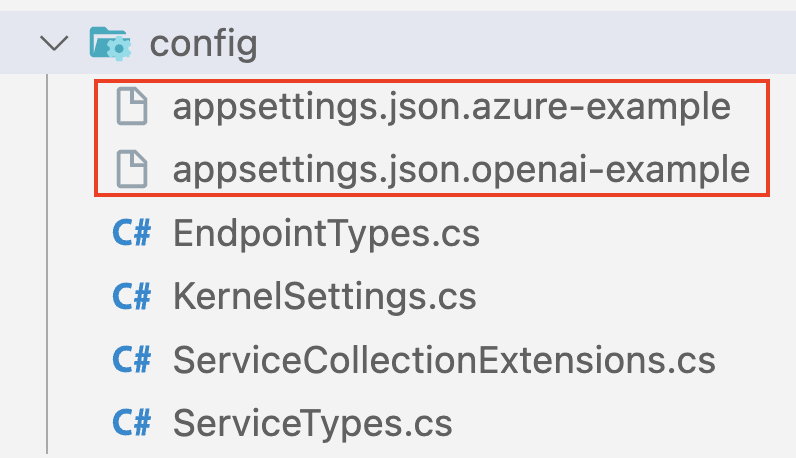
A new directory named sk-csharp-hello-world is created in your working directory. In Visual Studio Code, you will see the following directories and files:


Expand the config folder. You will see that there are two appsettings.json files - one for Azure-OpenAI and the other for OpenAI. 

Since we will be using with Azure-OpenAI, copy the file named "appsettings.json.azure-example" to another file simply named "appsettings.json".

Open appsettings.json in the editor.

{
  "endpointType": "text-completion",
  "serviceType": "AzureOpenAI",
  "serviceId": "text-davinci-003",
  "deploymentOrModelId": "text-davinci-003",
  "endpoint": "https:// ... your endpoint ... .openai.azure.com/",
  "apiKey": "... your Azure OpenAI key ..."
}

We need to make an important adjustment to the deploymentOrModelId setting. The clue for what needs to be done comes from the config/KernelSettings.cs file. You will notice that it expects property names deploymentId and modelId - see lines 15 and 18 below:


Therefore, replace the deploymentOrModelId setting in appsettings.json with two settings deploymentId and modelId. Our appsettings.json now looks like this:

{
  "endpointType": "text-completion",
  "serviceType": "AzureOpenAI",
  "serviceId": "text-davinci-003",
  "deploymentId": "text-davinci-003",
  "modelId": "text-davinci-003",
  "endpoint": "https:// ... your endpoint ... .openai.azure.com/",
  "apiKey": "... your Azure OpenAI key ..."
}

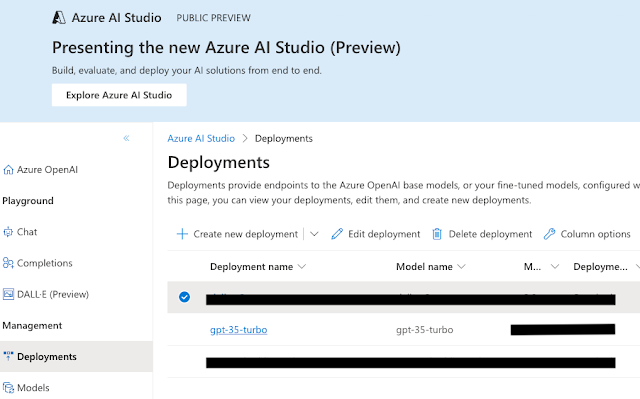
Of course, the next step is to use the proper values for serviceId, deploymentId, modelId, endpoint, and apiKey. This depends on the names of the various settings in your Azure-OpenAI account. Here is what I have in my Azure-OpenAI account:


The final state of my appsettings.json file is very similar to below. Since I cannot share the endpoint and apiKey with the world, I have fake values for these settings.

{
  "endpointType": "text-completion",
  "serviceType": "AzureOpenAI",
  "serviceId": "gpt-3.5-turbo",
  "deploymentId": "gpt-35-turbo",
  "modelId": "gpt-35-turbo",
  "endpoint": "https://fake.openai.azure.com/",
  "apiKey": "fakekey-fakekey-fakekey-fakekey"
}

We can now run the application and see what it does. In a terminal window, enter:

dotnet run

Here is the interaction I had with the application:

% dotnet run

User > in the summertime

Assistant > In the summertime, the weather is usually warm and sunny. It's a great time to enjoy outdoor activities like swimming, hiking, and barbecues. Many people also go on vacations or spend time at the beach. It's a season of relaxation and fun!

User > 

The prompt that is central to the way the app works is found in prompts/Chat.yaml.

name: Chat
template: |
  <message role="system">You are a helpful assistant.</message>

  {{#each messages}}
    <message role="{{Role}}">{{~Content~}}</message>
  {{/each}}
template_format: handlebars
description: A function that uses the chat history to respond to the user.
input_variables:
  - name: messages
    description: The history of the chat.
    is_required: true

Now that you were able to get the "Hello World" app working with the "Semantic Kernel Tool" extension for Visual Studio Code, go ahead and explore the other startup application types.

Good luck.


Monday, December 11, 2023

Mix Blazor with ASP.NET Core MVC

In this tutorial I will show you how you can inject Blazor components into your regular ASP.NET Core MVC web application. We will integrate the free QuickGrid Blazor components into our MVC application. 

Source code: https://github.com/medhatelmasry/MvcWithBlazor

Companion video: https://youtu.be/dsoGW59Vtpk

Prerequisites

It is assumed that you have installed the following on your computer:
  • .NET 8.0
  • Visual Studio Code editor

Getting Started

In a suitable working directory, create an ASP.NET MVC 8.0 web application with the following terminal window command:

dotnet new mvc -f net8.0 --name MvcWithBlazor

Change into the new directory with:

cd MvcWithBlazor

Add the following Blazor QuickGrid package with this terminal window command:

dotnet add package Microsoft.AspNetCore.Components.QuickGrid -v 8.0.0

Start Visual Studio Code with:

code .

To keep it simple, we will create some hard-coded student data. Create a Student.cs class file inside the Models folder with the following code:

namespace MvcWithBlazor.Models;
public class Student
{
    required public int? Id { get; set; }
    required public string FirstName { get; set; }
    required public string LastName { get; set; }
    required public string School { get; set; }
    public static IQueryable<Student> GetStudents()
    {
        int ndx = 0;
        List<Student> students = new List<Student>() {
            new Student() { Id = ++ndx, FirstName="Max", LastName="Pao", School="Science" },
            new Student() { Id = ++ndx, FirstName="Tom", LastName="Fay", School="Mining" },
            new Student() { Id = ++ndx, FirstName="Ann", LastName="Sun", School="Nursing" },
            new Student() { Id = ++ndx, FirstName="Joe", LastName="Fox", School="Computing" },
            new Student() { Id = ++ndx, FirstName="Sue", LastName="Mai", School="Mining" },
            new Student() { Id = ++ndx, FirstName="Ben", LastName="Lau", School="Business" },
            new Student() { Id = ++ndx, FirstName="Zoe", LastName="Ray", School="Mining" },
            new Student() { Id = ++ndx, FirstName="Sam", LastName="Ash", School="Medicine" },
            new Student() { Id = ++ndx, FirstName="Dan", LastName="Lee", School="Computing" },
            new Student() { Id = ++ndx, FirstName="Pat", LastName="Day", School="Science" },
            new Student() { Id = ++ndx, FirstName="Kim", LastName="Rex", School="Computing" },
            new Student() { Id = ++ndx, FirstName="Tim", LastName="Ram", School="Business" },
            new Student() { Id = ++ndx, FirstName="Rob", LastName="Wei", School="Mining" },
            new Student() { Id = ++ndx, FirstName="Jan", LastName="Tex", School="Science" },
            new Student() { Id = ++ndx, FirstName="Jim", LastName="Kid", School="Business" },
            new Student() { Id = ++ndx, FirstName="Ben", LastName="Chu", School="Medicine" },
            new Student() { Id = ++ndx, FirstName="Mia", LastName="Tao", School="Computing" },
            new Student() { Id = ++ndx, FirstName="Ted", LastName="Day", School="Business" },
            new Student() { Id = ++ndx, FirstName="Amy", LastName="Roy", School="Science" },
            new Student() { Id = ++ndx, FirstName="Ian", LastName="Kit", School="Nursing" },
            new Student() { Id = ++ndx, FirstName="Liz", LastName="Tan", School="Medicine" },
            new Student() { Id = ++ndx, FirstName="Mat", LastName="Roy", School="Tourism" },
            new Student() { Id = ++ndx, FirstName="Deb", LastName="Luo", School="Medicine" },
            new Student() { Id = ++ndx, FirstName="Ana", LastName="Poe", School="Computing" },
            new Student() { Id = ++ndx, FirstName="Lyn", LastName="Raj", School="Science" },
            new Student() { Id = ++ndx, FirstName="Amy", LastName="Ash", School="Tourism" },
            new Student() { Id = ++ndx, FirstName="Kim", LastName="Kid", School="Mining" },
            new Student() { Id = ++ndx, FirstName="Bec", LastName="Fry", School="Nursing" },
            new Student() { Id = ++ndx, FirstName="Eva", LastName="Lap", School="Computing" },
            new Student() { Id = ++ndx, FirstName="Eli", LastName="Yim", School="Business" },
            new Student() { Id = ++ndx, FirstName="Sam", LastName="Hui", School="Science" },
            new Student() { Id = ++ndx, FirstName="Joe", LastName="Jin", School="Mining" },
            new Student() { Id = ++ndx, FirstName="Liz", LastName="Kuo", School="Agriculture" },
            new Student() { Id = ++ndx, FirstName="Ric", LastName="Mak", School="Tourism" },
            new Student() { Id = ++ndx, FirstName="Pam", LastName="Day", School="Computing" },
            new Student() { Id = ++ndx, FirstName="Stu", LastName="Gad", School="Business" },
            new Student() { Id = ++ndx, FirstName="Tom", LastName="Bee", School="Tourism" },
            new Student() { Id = ++ndx, FirstName="Bob", LastName="Lam", School="Agriculture" },
            new Student() { Id = ++ndx, FirstName="Jim", LastName="Ots", School="Medicine" },
            new Student() { Id = ++ndx, FirstName="Tom", LastName="Mag", School="Mining" },
            new Student() { Id = ++ndx, FirstName="Hal", LastName="Doe", School="Agriculture" },
            new Student() { Id = ++ndx, FirstName="Roy", LastName="Kim", School="Nursing" },
            new Student() { Id = ++ndx, FirstName="Vis", LastName="Cox", School="Science" },
            new Student() { Id = ++ndx, FirstName="Kay", LastName="Aga", School="Tourism" },
            new Student() { Id = ++ndx, FirstName="Reo", LastName="Hui", School="Business" },
            new Student() { Id = ++ndx, FirstName="Bob", LastName="Roe", School="Medicine" },
        };
        return students.AsQueryable();
    }
}

Create a Components folder and add to it the following files with their respective contents:

_Imports.razor

@using System.Net.Http
@using System.Net.Http.Json
@using Microsoft.AspNetCore.Components.Forms
@using Microsoft.AspNetCore.Components.Routing
@using Microsoft.AspNetCore.Components.Web
@using static Microsoft.AspNetCore.Components.Web.RenderMode
@using Microsoft.AspNetCore.Components.Web.Virtualization
@using Microsoft.JSInterop
@using MvcWithBlazor
@using MvcWithBlazor.Components 
@using Microsoft.AspNetCore.Components.QuickGrid
@using MvcWithBlazor.Models

Routes.razor

<Router AppAssembly="@typeof(Program).Assembly">
    <Found Context="routeData">
        <RouteView RouteData="@routeData" />
        <FocusOnNavigate RouteData="@routeData" Selector="h1" />
    </Found>
</Router>

App.razor

<!DOCTYPE html>
<html lang="en">
<head>
    <meta charset="utf-8" />
    <meta name="viewport" content="width=device-width, initial-scale=1.0" />
    <base href="/" />
    <link rel="stylesheet" href="MvcWithBlazor.styles.css" />
    <HeadOutlet />
</head>
<body>
    <Routes />
    <script src="_framework/blazor.web.js"></script>
</body>
</html>

Note that you need adjust the above highlighted text with your application name.

Inside the Components folder, add a sub-folder named Pages. Inside the Components/Pages folder add a Students.razor component file with this code:

@page "/students"
@rendermode InteractiveServer
<PageTitle>Students</PageTitle>
<h1>Students</h1>
<QuickGrid Items="@students" Pagination="@pagination">
    <PropertyColumn Property="@(_ => _.Id)" Sortable="true" />
    <TemplateColumn Title="Name" SortBy="@sortByName">
        <div class="flex items-center">
            <nobr>
                <strong>@context.FirstName @context.LastName</strong>
            </nobr>
        </div>
    </TemplateColumn>
    <PropertyColumn Property="@(_ => _.School)" Sortable="true" />
</QuickGrid>
<Paginator State="@pagination" />

@code {
    IQueryable<Student> students = Student.GetStudents();
    PaginationState pagination = new PaginationState { ItemsPerPage = 10 };
    GridSort<Student> sortByName = GridSort<Student>
    .ByAscending(_ => _.FirstName).ThenAscending(_ => _.LastName);
}

Adding appropriate services and middleware to Program.cs

Add the following using statement at the top of Program.cs:

using MvcWithBlazor.Components;

Add the following razor component services before the line that calls builder.Build():

builder.Services
.AddRazorComponents()
.AddInteractiveServerComponents()
.AddCircuitOptions(options => options.DetailedErrors = true); // for debugging razor components

Add this anti-forgery middleware right after 'app.UseRouting();':

app.UseAntiforgery();

Place this code before the line that calls app.Run():

app.MapRazorComponents<App>()
.AddInteractiveServerRenderMode();

Try it out

Run the application with the following terminal window command:

dotnet watch

When the home page loads in your browser, try the /students page. You should see a page that looks like this:


You can sort any column by clicking on the column title and the paging should also work. We have succeeded in mixing Blazor with ASP.NET MVC. 

Injecting Blazor components into MVC views

We can inject Blazor components directly into MVC .cshtml views. We must first make the appropriate namespaces visible to the environment for the MVC views. Add the following using statements to Views/_ViewImports.cshtml:

@using MvcWithBlazor.Components
@using MvcWithBlazor.Components.Pages

Note that you must adjust the above highlighted text with the appropriate name of your application.

Add the following <base> tag and Component Tag Helper for a HeadOutlet component to the <head> markup of Views/Shared/_Layout.cshtml:

<base href="~/" />
<component type="typeof(Microsoft.AspNetCore.Components.Web.HeadOutlet)" 
    render-mode="ServerPrerendered" />

The HeadOutlet component is used to render head (<head>) content for page titles (PageTitle component) and other head elements (HeadContent component) set by Razor components.

Also, in the same Views/Shared/_Layout.cshtml file, add a <script> tag for the blazor.web.js script immediately before the Scripts render section (@await RenderSectionAsync(...)):

<script src="_framework/blazor.web.js"></script>

Next, add the following tag to the bottom of home page Views/Home/Index.cshtml:

<component type="typeof(Students)" render-mode="ServerPrerendered" />

Point your browser to the home page of the ASP.NET Core MVC app. You should experience a page that has the Students component embedded inside it.

Paging and sorting work as expected.

Conclusion

You can do the same with ASP.NET Core Razor Pages.

I hope you found this article useful.

Wednesday, December 6, 2023

Using free QuickGrid component with Static Server Rendering Blazor App

 Overview

QuickGrid is a Razor component that quickly and efficiently displays data in tabular form. Visit https://aspnet.github.io/quickgridsamples/ to check out what you can do with this component. In this tutorial, you will discover how easy it is to incorporate in your apps and how versatile it is. I will be using the current version of .NET 8.0.

Source Code: https://github.com/medhatelmasry/BlazorQuickGrid

Companion Video: https://youtu.be/LBoG1WMaFGI

Getting Started

We will create a Static Server rendering (SSR) application with the following terminal command:

dotnet new blazor --name BlazorQuickGrid 

cd BlazorQuickGrid

Add this class to Models/Student.cs to generate some sample student data:

namespace BlazorQuickGrid.Models;

public class Student {
    required public int? Id { get; set; }
    required public string FirstName { get; set; }
    required public string LastName { get; set; }
    required public string School { get; set; }

    public static IQueryable<Student> GetStudents() {
        int ndx = 0;
        List<Student> students = new List<Student>() {
            new Student() { Id = ++ndx, FirstName="Max", LastName="Pao", School="Science" },
            new Student() { Id = ++ndx, FirstName="Tom", LastName="Fay", School="Mining" },
            new Student() { Id = ++ndx, FirstName="Ann", LastName="Sun", School="Nursing" },
            new Student() { Id = ++ndx, FirstName="Joe", LastName="Fox", School="Computing" },
            new Student() { Id = ++ndx, FirstName="Sue", LastName="Mai", School="Mining" },
            new Student() { Id = ++ndx, FirstName="Ben", LastName="Lau", School="Business" },
            new Student() { Id = ++ndx, FirstName="Zoe", LastName="Ray", School="Mining" },
            new Student() { Id = ++ndx, FirstName="Sam", LastName="Ash", School="Medicine" },
            new Student() { Id = ++ndx, FirstName="Dan", LastName="Lee", School="Computing" },
            new Student() { Id = ++ndx, FirstName="Pat", LastName="Day", School="Science" },
            new Student() { Id = ++ndx, FirstName="Kim", LastName="Rex", School="Computing" },
            new Student() { Id = ++ndx, FirstName="Tim", LastName="Ram", School="Business" },
            new Student() { Id = ++ndx, FirstName="Rob", LastName="Wei", School="Mining" },
            new Student() { Id = ++ndx, FirstName="Jan", LastName="Tex", School="Science" },
            new Student() { Id = ++ndx, FirstName="Jim", LastName="Kid", School="Business" },
            new Student() { Id = ++ndx, FirstName="Ben", LastName="Chu", School="Medicine" },
            new Student() { Id = ++ndx, FirstName="Mia", LastName="Tao", School="Computing" },
            new Student() { Id = ++ndx, FirstName="Ted", LastName="Day", School="Business" },
            new Student() { Id = ++ndx, FirstName="Amy", LastName="Roy", School="Science" },
            new Student() { Id = ++ndx, FirstName="Ian", LastName="Kit", School="Nursing" },
            new Student() { Id = ++ndx, FirstName="Liz", LastName="Tan", School="Medicine" },
            new Student() { Id = ++ndx, FirstName="Mat", LastName="Roy", School="Tourism" },
            new Student() { Id = ++ndx, FirstName="Deb", LastName="Luo", School="Medicine" },
            new Student() { Id = ++ndx, FirstName="Ana", LastName="Poe", School="Computing" },
            new Student() { Id = ++ndx, FirstName="Lyn", LastName="Raj", School="Science" },
            new Student() { Id = ++ndx, FirstName="Amy", LastName="Ash", School="Tourism" },
            new Student() { Id = ++ndx, FirstName="Kim", LastName="Kid", School="Mining" },
            new Student() { Id = ++ndx, FirstName="Bec", LastName="Fry", School="Nursing" },
            new Student() { Id = ++ndx, FirstName="Eva", LastName="Lap", School="Computing" },
            new Student() { Id = ++ndx, FirstName="Eli", LastName="Yim", School="Business" },
            new Student() { Id = ++ndx, FirstName="Sam", LastName="Hui", School="Science" },
            new Student() { Id = ++ndx, FirstName="Joe", LastName="Jin", School="Mining" },
            new Student() { Id = ++ndx, FirstName="Liz", LastName="Kuo", School="Agriculture" },
            new Student() { Id = ++ndx, FirstName="Ric", LastName="Mak", School="Tourism" },
            new Student() { Id = ++ndx, FirstName="Pam", LastName="Day", School="Computing" },
            new Student() { Id = ++ndx, FirstName="Stu", LastName="Gad", School="Business" },
            new Student() { Id = ++ndx, FirstName="Tom", LastName="Bee", School="Tourism" },
            new Student() { Id = ++ndx, FirstName="Bob", LastName="Lam", School="Agriculture" },
            new Student() { Id = ++ndx, FirstName="Jim", LastName="Ots", School="Medicine" },
            new Student() { Id = ++ndx, FirstName="Tom", LastName="Mag", School="Mining" },
            new Student() { Id = ++ndx, FirstName="Hal", LastName="Doe", School="Agriculture" },
            new Student() { Id = ++ndx, FirstName="Roy", LastName="Kim", School="Nursing" },
            new Student() { Id = ++ndx, FirstName="Vis", LastName="Cox", School="Science" },
            new Student() { Id = ++ndx, FirstName="Kay", LastName="Aga", School="Tourism" },
            new Student() { Id = ++ndx, FirstName="Reo", LastName="Hui", School="Business" },
            new Student() { Id = ++ndx, FirstName="Bob", LastName="Roe", School="Medicine" },
        };
        return students.AsQueryable();
    }
}

Add this QuickGrid package to your server-side blazor app:

dotnet add package Microsoft.AspNetCore.Components.QuickGrid

Add this to Components/_Imports.razor:

@using Microsoft.AspNetCore.Components.QuickGrid
@using BlazorQuickGrid.Models

Replace Components/Pages/Home.razor with the following:

@page "/"
@rendermode InteractiveServer

<PageTitle>Students</PageTitle>
<h1>Students</h1>
<QuickGrid Items="@students">
    <PropertyColumn Property="@(_ => _.Id)" Sortable="true" />
    <PropertyColumn Property="@(_ => _.FirstName)" Sortable="true" />
    <PropertyColumn Property="@(_ => _.LastName)" Sortable="true" />
    <PropertyColumn Property="@(_ => _.School)" Sortable="true" />
</QuickGrid>
@code {
    IQueryable<Student> students = Student.GetStudents();
}

You can now run your app with:

dotnet watch

The following page would load in your browser:


One of the quick wins that you get out of the box is the ability to sort. Click on the column titles and you will see that the data in the column sorts.

Pagination

Add this variable inside the @code { . . .  } block in Components/Pages/Home.razor.

private PaginationState pagination = new PaginationState { ItemsPerPage = 10 };

Add this parameter in to the opening <QuickGrid> tag:

Pagination="@pagination"

To provide for paging, add this pagination component under </QuickGrid>:

<Paginator State="@pagination" />

Pagination will appear at the bottom of the table:


TemplateColumn

Suppose we want to combine first and last names into the same column. This is a good example of why you would use TemplateColumn. 

Replace:

<PropertyColumn Property="@(_ => _.FirstName)" Sortable="true" />
<PropertyColumn Property="@(_ => _.LastName)" Sortable="true" />

WITH

<TemplateColumn Title="Name">
  <div class="flex items-center">
    <nobr>
      @context.FirstName @context.LastName
    </nobr>
  </div>
</TemplateColumn>


Although we succeeded in putting the full name under one column, unfortunately, the Name column is not sortable. Let us fix that.Add this sortByName variable into the @code {  . . . } code block:

GridSort<Student> sortByName = GridSort<Student>
    .ByAscending(_ => _.FirstName).ThenAscending(_ => _.LastName);

Also, add this parameter to the opening <TemplateColumn> tag for Name:

SortBy="@sortByName"
It is now possible to sort the Name column.

There is much more you can do with the QuickGrid component. Consider this a small taste of what is possible.