Showing posts with label Northwind database. Show all posts

Wednesday, December 29, 2021

Generate PDF reports from API data using iText 7 Core library in ASP.NET Razor Pages 10.0

 PDF stands for "Portable Document Format". It is, indeed, the standard for exchanging formatted documents on the internet. PDF documents are read by Adobe Acrobat Reader, most browsers, and even some popular word processors like Microsoft Word. It is a common used-case to generate PDF reports from live data. In this tutorial, I shall show you how you can easily generate a PDF report in an ASP.NET Core Razor Pages app and display data that originates from a Products API. We shall use the iText 7 library to accomplish this task. 

Source Code: https://github.com/medhatelmasry/RazorPdfDemo
Companion Video: https://youtu.be/5KxxRbApoRY

Pre-requisites:

  • .NET version 10
  • Visual Studio Code

The products API

We will work with the products API at https://northwind.vercel.app/api/products. The data in the API is generated from the well known Northwind sample SQL Server database. If you point your browser to the above address, you will see the following:

Project setup

Run the following command to create an ASP.NET Core Razor Pages application using .NET 10.0 in a folder named RazorPdfDemo:

dotnet new razor -f net10.0 -o RazorPdfDemo

Change directory into the new folder and open the project inside VS Code with the following commands:

cd RazorPdfDemo

code .

Add the iText 7 Core package so that we have the ability to generate PDF output.

dotnet add package itext7
dotnet add package itext.bouncy-castle-adapter

Product model class

Each Product JSON object contains the following properties:


Id (int)
SupplierId (int)
CategoryId (int)
QuantityPerUnit (string)
UnitPrice (decimal)
UnitsInStock (short)
ReorderLevel (short)
Discontinued (bool)
Name (string)

We need to create a Product model class that represents the above JSON object. Therefore create a Models folder and add to it a Product class with the following content:

public partial class Product {
  [JsonPropertyName("id")]
  public int Id { get; set; } 
  [JsonPropertyName("supplierId")]
  public int? SupplierId { get; set; }
  [JsonPropertyName("categoryId")]
  public int? CategoryId { get; set; }
  [JsonPropertyName("quantityPerUnit")]
  public string? QuantityPerUnit { get; set; }
  [JsonPropertyName("unitPrice")]
  public decimal? UnitPrice { get; set; }
  [JsonPropertyName("unitsInStock")]
  public short? UnitsInStock { get; set; }
  [JsonPropertyName("unitsOnOrder")]
  public short? UnitsOnOrder { get; set; }
  [JsonPropertyName("reorderLevel")]
  public short? ReorderLevel { get; set; }
  [JsonPropertyName("discontinued")]
  public bool Discontinued { get; set; }
  [JsonPropertyName("name")]
  public string Name { get; set; } = null!;
}

Generating PDF report

In the Pages folder, create two new files named Report.cshtml and Report.cshtml.cs

Add the following C# code to Report.cshtml.cs:

using iText.Kernel.Colors;
using iText.Kernel.Geom;
using iText.Kernel.Pdf;
using iText.Kernel.Pdf.Canvas.Draw;
using iText.Layout;
using iText.Layout.Element;
using iText.Layout.Properties;
using Microsoft.AspNetCore.Mvc;
using Microsoft.AspNetCore.Mvc.RazorPages;
using RazorPdfDemo.Models;
using System.Text.Json;

namespace RazorPdfDemo.Pages;

public class ReportModel : PageModel {
  private readonly ILogger<IndexModel> _logger;

  public ReportModel(ILogger<IndexModel> logger) {
    _logger = logger;
  }

  public async Task<IActionResult> OnGet() {
    MemoryStream ms = new MemoryStream();

    PdfWriter writer = new PdfWriter(ms);
    PdfDocument pdfDoc = new PdfDocument(writer);
    Document document = new Document(pdfDoc, PageSize.A4, false);
    writer.SetCloseStream(false);

    Paragraph header = new Paragraph("Northwind Products")
      .SetTextAlignment(TextAlignment.CENTER)
      .SetFontSize(20);

    document.Add(header);

    Paragraph subheader = new Paragraph(DateTime.Now.ToShortDateString())
      .SetTextAlignment(TextAlignment.CENTER)
      .SetFontSize(15);
    document.Add(subheader);

    // empty line
    document.Add(new Paragraph(""));

    // Line separator
    LineSeparator ls = new LineSeparator(new SolidLine());
    document.Add(ls);

    // empty line
    document.Add(new Paragraph(""));

    // Add table containing data
    document.Add(await GetPdfTable());

    // Page Numbers
    int n = pdfDoc.GetNumberOfPages();
    for (int i = 1; i <= n; i++) {
      document.ShowTextAligned(new Paragraph(String
        .Format("Page " + i + " of " + n)),
        559, 806, i, TextAlignment.RIGHT,
        VerticalAlignment.TOP, 0);
    }

    document.Close();
    byte[] byteInfo = ms.ToArray();
    ms.Write(byteInfo, 0, byteInfo.Length);
    ms.Position = 0;

    FileStreamResult fileStreamResult = new FileStreamResult(ms, "application/pdf");

    //Uncomment this to return the file as a download
    //fileStreamResult.FileDownloadName = "NorthwindProducts.pdf";

    return fileStreamResult;
  }

  private async Task<Table> GetPdfTable() {
      // Table
      Table table = new Table(4, false);

      // Headings
      Cell cellProductId = new Cell(1, 1)
         .SetBackgroundColor(ColorConstants.LIGHT_GRAY)
         .SetTextAlignment(TextAlignment.CENTER)
         .Add(new Paragraph("Product ID"));

      Cell cellProductName = new Cell(1, 1)
         .SetBackgroundColor(ColorConstants.LIGHT_GRAY)
         .SetTextAlignment(TextAlignment.LEFT)
         .Add(new Paragraph("Product Name"));

      Cell cellQuantity = new Cell(1, 1)
         .SetBackgroundColor(ColorConstants.LIGHT_GRAY)
         .SetTextAlignment(TextAlignment.CENTER)
         .Add(new Paragraph("Quantity"));

      Cell cellUnitPrice = new Cell(1, 1)
         .SetBackgroundColor(ColorConstants.LIGHT_GRAY)
         .SetTextAlignment(TextAlignment.CENTER)
         .Add(new Paragraph("Unit Price"));

      table.AddCell(cellProductId);
      table.AddCell(cellProductName);
      table.AddCell(cellQuantity);
      table.AddCell(cellUnitPrice);

      Product[] products = await GetProductsAsync();

      foreach (var item in products) {
        Cell cId = new Cell(1, 1)
            .SetTextAlignment(TextAlignment.CENTER)
            .Add(new Paragraph(item.Id.ToString()));

        Cell cName = new Cell(1, 1)
            .SetTextAlignment(TextAlignment.LEFT)
            .Add(new Paragraph(item.Name));

        Cell cQty = new Cell(1, 1)
            .SetTextAlignment(TextAlignment.RIGHT)
            .Add(new Paragraph(item.UnitsInStock.ToString()));

        Cell cPrice = new Cell(1, 1)
            .SetTextAlignment(TextAlignment.RIGHT)
            .Add(new Paragraph(String.Format("{0:C2}", item.UnitPrice)));

        table.AddCell(cId);
        table.AddCell(cName);
        table.AddCell(cQty);
        table.AddCell(cPrice);
      }

      return table;
  }

  private async Task<Product[]> GetProductsAsync() {
    HttpClient client = new HttpClient();
    var stream = client.GetStreamAsync("https://northwind.vercel.app/api/products");
    var products = await JsonSerializer.DeserializeAsync<Product[]>(await stream);
    
    return products!;
  }
}

What does the above code do?
  1. The GetProductsAsync() method makes an HTTP GET request to endpoint https://northwind.vercel.app/api/products and reads products data. It then de-serializes the data into an array of Product objects and subsequently returns the array.
  2. The GetPdfTable() method does the following:
    • The heading of the table is created. There will be four columns with titles: Product IDProduct NameQuantity and Unit Price
    • An array of Product objects is obtained from a call to the GetProductsAsync() method
    • We iterate through each item in the array and add rows of data to the table
  3. The OnGet() method does the following:
    • The first five lines in the OnGet() method sets up all the objects that are needed to generate a PDF document.
    • A header with title "Northwind Products" is placed at the top of the report - center aligned.
    • A sub-header with the current date is placed under the heading - also center aligned.
    • This is followed by an empty line, a solid-line, and another empty line.
    • The table containing product data is then displayed.
    • Paging is added to the top right-side of each page
    • Finally, the report is streamed down to the browser.
Add the following code to Report.cshtml:

@page
@model ReportModel

Let us add a menu item to the navigation of our web app. Open Pages/Shared/_Layout.cshtml and add the following markup code to the bottom of the <ul> .... </ul> navigation block:

<li class="nav-item">
  <a class="nav-link text-dark" asp-area="" asp-page="/Report">Products PDF</a>
</li>

At this stage, let's run our web app and verify that we are indeed able to read data from the Northwind products API and subsequently generate a PDF report. Run your application with:

dotnet watch run

Point your browser to https://localhost:7292

NOTE: you will need to adjust the port number to suit your environment.

This is what the home page looks like:


Click on "Products PDF". You should soon after see the PDF document being generated in your browser:


You can click on the download icon on the top right-side of the report in order to download a copy of the report. 

Alternatively, you can uncomment the following code in the OnGet() method if you want the report to get directly downloaded to your computer:

// fileStreamResult.FileDownloadName = "NorthwindProducts.pdf";

When you run the app again and click on the "Products PDF" link, the report named "NorthwindProducts.pdf" gets immediately downloaded to your computer.

Conclusion

Using the iText 7 library is pretty straight forward when it comes to generating PDF documents. You can learn more at https://kb.itextpdf.com/home/it7kb/ebooks/itext-7-jump-start-tutorial-for-net.

This article is intended to provide you with a good starting point for generating PDF reports from your ASP.NET Razor Pages web apps.

Tuesday, December 28, 2021

Generate PDF reports from SQL Server data using iText 7 Core library in ASP.NET Core MVC 6.0

PDF stands for "Portable Document Format". It is, indeed, the standard for exchanging formatted documents on the internet. PDF documents are read by Adobe Acrobat Reader, most browsers, and even some popular word processors like Microsoft Word. It is a common used-case to generate PDF documents from live data. In this tutorial, I shall show you how you can easily generate a PDF report in an ASP.NET Core MVC app and display data that originates from the sample SQL Server database named Northwind. We shall use the iText 7 library to accomplish this task. 

Source Code: https://github.com/medhatelmasry/MvcPdfDemo

The environment I am using is:

  • Windows 11
  • Docker Desktop for Windows
  • .NET version 6.0.100
  • Visual Studio Code

Start Northwind database in a Docker container

To pull & run the Northwind database in a Docker container, run the following command in a terminal window:

docker run -d --name nw -p 1444:1433 kcornwall/sqlnorthwind

The above command does the following:

Docker image:kcornwall/sqlnorthwind
Container Name (--name):nw
Ports (-p):Port 1433 in container is exposed as port 1444 on the host computer
Password:The sa password is Passw0rd2018. This was determined from the Docker Hub page for the image.
-d:Starts the container in detached mode

This is what I experienced after I ran the above command:


Let us make sure that the container is running. Execute this command to ensure that the container is indeed running.

docker ps

The following confirmed to me that the container is running:

Project setup

Run the following command to create an ASP.NET Core MVC application using .NET 6.0 in a folder named MvcPdfDemo:

dotnet new mvc -f net6.0 -o MvcPdfDemo

Change directory into the new folder and open the project inside VS Code with the following commands:

cd MvcPdfDemo

code .

We will need to install an Entity Framework command-line utility. If you have not done so already, install dotnet-ef with this command:

dotnet tool install -g dotnet-ef 

It does not hurt to upgrade this tool to the latest version with:

dotnet tool update -g dotnet-ef

Also, from within the root folder of your project, add some SQL-Server and Entity Framework related packages with the following terminal-window commands:

dotnet add package Microsoft.EntityFrameworkCore.Design
dotnet add package Microsoft.EntityFrameworkCore.SqlServer
dotnet add package Microsoft.EntityFrameworkCore.Tools

Also, add the iText 7 Core package so that we have the ability to generate PDF output.

dotnet add package itext7 --version 7.2.0

In appsettings.json, add this to ConnectionStrings block just before “Logging”:

"ConnectionStrings": {
    "NW": "Data Source=localhost,1444;Initial Catalog=Northwind;Persist Security Info=True;User ID=sa;Password=Passw0rd2018"
},

Next, let us reverse engineer the Products entity in the Northwind database. Execute this command from the root of your project:

dotnet-ef dbcontext scaffold "Data Source=localhost,1444;Initial Catalog=Northwind;Persist Security Info=True;User ID=sa;Password=Passw0rd2018" Microsoft.EntityFrameworkCore.SqlServer -c NorthwindContext -o Models/NW --table Products

This creates a Models/NW folder in your project with entity Product. It also adds the database context class NorthwindContext.


Delete the OnConfiguring() method in NorthwindContext.cs so that there is no hard-coded connection string in our C# code.

Add the following code to Program.cs right after where the variable builder is declared around line 2:

var connectionString = builder.Configuration.GetConnectionString("NW");
builder.Services.AddDbContext<NorthwindContext>(options => {
  options.UseSqlServer(connectionString);
});

Generating PDF report


Let's take advantage of dependency injection to access the database through an instance of the NorthwindContext. Add the following instance variable declaration to the top of the HomeController class:

private readonly NorthwindContext _northwindContext;

Update the HomeController constructor so it looks like this:

public HomeController(
  ILogger<HomeController> logger, 
  NorthwindContext northwindContext) {
  _logger = logger;
  _northwindContext = northwindContext;
}

We will next add an action method to the HomeController that will generate and download a PDF report. Add the following helper method that returns a table:

private Table GetPdfTable() {
    // Table
    Table table = new Table(4, false);

    // Headings
    Cell cellProductId = new Cell(1, 1)
       .SetBackgroundColor(ColorConstants.LIGHT_GRAY)
       .SetTextAlignment(TextAlignment.CENTER)
       .Add(new Paragraph("Product ID"));

    Cell cellProductName = new Cell(1, 1)
       .SetBackgroundColor(ColorConstants.LIGHT_GRAY)
       .SetTextAlignment(TextAlignment.LEFT)
       .Add(new Paragraph("Product Name"));

    Cell cellQuantity = new Cell(1, 1)
       .SetBackgroundColor(ColorConstants.LIGHT_GRAY)
       .SetTextAlignment(TextAlignment.CENTER)
       .Add(new Paragraph("Quantity"));

    Cell cellUnitPrice = new Cell(1, 1)
       .SetBackgroundColor(ColorConstants.LIGHT_GRAY)
       .SetTextAlignment(TextAlignment.CENTER)
       .Add(new Paragraph("Unit Price"));

    table.AddCell(cellProductId);
    table.AddCell(cellProductName);
    table.AddCell(cellQuantity);
    table.AddCell(cellUnitPrice);

    var qry = _northwindContext.Products
        .Select(_ => new {
            _.ProductId,
            _.ProductName,
            _.UnitPrice,
            _.UnitsInStock
        });

    foreach (var item in qry) {
        Cell cId = new Cell(1, 1)
            .SetTextAlignment(TextAlignment.CENTER)
            .Add(new Paragraph(item.ProductId.ToString()));

        Cell cName = new Cell(1, 1)
            .SetTextAlignment(TextAlignment.LEFT)
            .Add(new Paragraph(item.ProductName));

        Cell cQty = new Cell(1, 1)
            .SetTextAlignment(TextAlignment.RIGHT)
            .Add(new Paragraph(item.UnitsInStock.ToString()));

        Cell cPrice = new Cell(1, 1)
            .SetTextAlignment(TextAlignment.RIGHT)
            .Add(new Paragraph(String.Format("{0:C2}", item.UnitPrice)));

        table.AddCell(cId);
        table.AddCell(cName);
        table.AddCell(cQty);
        table.AddCell(cPrice);
    }

    return table;
}
 
What does the above code do?
  1. The heading of the table is created. There will be four columns with titles: Product ID, Product Name, Quantity and Unit Price
  2. Using Entity Framework, we make a query that reads all the products from the Northwind database.
  3. We iterate through each item in the query and add rows of data to the table

Our next task is to add an Action method that uses the above GetPdfTable() helper method and returns a PDF document. Add the following Report() action method:

public IActionResult Report() {
  MemoryStream ms = new MemoryStream();

  PdfWriter writer = new PdfWriter(ms);
  PdfDocument pdfDoc = new PdfDocument(writer);
  Document document = new Document(pdfDoc, PageSize.A4, false);
  writer.SetCloseStream(false);

  Paragraph header = new Paragraph("Northwind Products")
    .SetTextAlignment(TextAlignment.CENTER)
    .SetFontSize(20);

  document.Add(header);

  Paragraph subheader = new Paragraph(DateTime.Now.ToShortDateString())
    .SetTextAlignment(TextAlignment.CENTER)
    .SetFontSize(15);
  document.Add(subheader);

  // empty line
  document.Add(new Paragraph(""));

  // Line separator
  LineSeparator ls = new LineSeparator(new SolidLine());
  document.Add(ls);

  // empty line
  document.Add(new Paragraph(""));

  // Add table containing data
  document.Add(GetPdfTable());

  // Page Numbers
  int n = pdfDoc.GetNumberOfPages();
  for (int i = 1; i <= n; i++) {
    document.ShowTextAligned(new Paragraph(String
      .Format("Page " + i + " of " + n)),
      559, 806, i, TextAlignment.RIGHT,
      VerticalAlignment.TOP, 0);
  }

  document.Close();
  byte[] byteInfo = ms.ToArray();
  ms.Write(byteInfo, 0, byteInfo.Length);
  ms.Position = 0;

  FileStreamResult fileStreamResult = new FileStreamResult(ms, "application/pdf");

  //Uncomment this to return the file as a download
  //fileStreamResult.FileDownloadName = "NorthwindProducts.pdf";

  return fileStreamResult;
}

What does the above code do?

  1. The first five lines in the Report() action method sets up all the objects that are needed to generate a PDF document.
  2. A header with title "Northwind Products" is placed at the top of the report - center aligned.
  3. A sub-header with the current date is placed under the heading - also center aligned.
  4. This is followed by an empty line, a solid-line, and another empty line.
  5. The table containing product data is then displayed.
  6. Paging is added to the top right-side of each page
  7. Finally, the report is streamed down to the browser.

Let us add a menu item to the navigation of our web app. Open Views/Shared/_Layout.cshtml and add the following markup code to the bottom of the <ul> .... </ul> navigation block:

<li class="nav-item">
  <a class="nav-link text-dark" asp-area="" asp-controller="Home" asp-action="Report">Products PDF</a>
</li>

At this stage, let's run our web app and verify that we are indeed able to read data from the Northwind database and subsequently generate a PDF report. Run your application with:

dotnet watch run

Point your browser to https://localhost:7052

NOTE: you will need to adjust the port number to suit your environment.

This is what the home page looks like:


Click on "Products PDF". You should soon after see the PDF document being generated in your browser:


You can click on the download icon on the top right-side of the report in order to download a copy of the report. 

Alternatively, you can uncomment the following code if you want the report to get directly downloaded to your computer:

// fileStreamResult.FileDownloadName = "NorthwindProducts.pdf";

If you run the app again and click on the "Products PDF" link, the report named "NorthwindProducts.pdf" gets immediately downloaded to your computer.

Conclusion

I found the iText 7 library pretty straight forward when it comes to generating PDF documents. You can learn more at https://kb.itextpdf.com/home/it7kb/ebooks/itext-7-jump-start-tutorial-for-net.

I hope this provides you with a respectable starting point for generating PDF reports from your ASP.NET MVC web apps.


Sunday, December 13, 2020

EF Core Power Tools & .NET 5.0

The "EF Core Power Tools" is an open source project on GitHub started by Erik Ejlskov Jensen. It is an extension that you can add to Visual Studio 2019. In this post I will try and introduce you to this very useful tool. We will be using the SQL-Server Northwind database running in a container for sample data. 

Companion Video: 

Let's get started: https://youtu.be/FNXlsN3barQ

Running a docker container with SQL-Server Northwind sample database

I will use a docker image that contains the SQL-Server Northwind database. Credit goes to kcornwall for creating this docker image.

To pull & run the Northwind database in a docker container, run the following command in a terminal window:

docker run -d --name nw -p 1444:1433 kcornwall/sqlnorthwind

The above command does the following:

Docker image:  kcornwall/sqlnorthwind
Container Name
(--name):
 nw
Ports (-p):  Port 1433 in container is exposed as port 1444 on the host computer
Password:  The sa password is Passw0rd2018. This was determined from the Docker Hub page for the image.
-d:  Starts the container in detached mode

This is what I experienced after I ran the above command:

docker run
Let us make sure that the container is running. Execute this command to ensure that the container is running OK.

docker ps

The following confirmed to me that the container is indeed running:

docker ps

Install "EF Core Power Tools" extension into Visual Studio 2019

We will test "EF Core Power Tools" using a C# console application. Start Visual Studio and create a new project based on the "Console App (.NET Core) C#" template. You can name the app whatever you like.

Edit the .csproj file to make sure it is using the latest version of .NET Core. At the time of writing this post, my .csproj file looked like:

<Project Sdk="Microsoft.NET.Sdk">
  <PropertyGroup>
    <OutputType>Exe</OutputType>
    <TargetFramework>netcoreapp3.1</TargetFramework>
  </PropertyGroup>
</Project>

I changed TargetFramework netcoreapp3.1 to net5.0. The end result was:

<Project Sdk="Microsoft.NET.Sdk">
  <PropertyGroup>
    <OutputType>Exe</OutputType>
    <TargetFramework>net5.0</TargetFramework>
  </PropertyGroup>
</Project>

Rebuild your application to make sure all is OK.

In Visual Studio 2019, click on Extensions >> Manage Extensions.

Extensions
Enter "EF Core Power Tools" in the filter field. This causes the tool to be the first item in the list. Click on Download beside "EF Core Power Tools".
EF Core Power Tools

Exit Visual Studio 2019 for this extension to get installed. When you click Modify on the following dialog, the extension gets installed.
modify
Finally, click on the Close button.
close

Using EF Core Power Tools

Restart Visual Studio 2019 and open the console application that you had previously created. Now, when you right-click on the project node in "Solution Explorer", you will see "EF Core Power Tools".
EF Core Power Tools in Visual Studio 2019

Let us reverse engineer the Northwind database that is currently running in a docker container. Click on: EF Core Power Tools >> Reverse Engineer. Then, click on the first Add button.
choose database connection
On the next "Connection Properties" dialog, enter the following data:

Data source: Choose: Microsoft SQL Server (SqlClient)
Server name: localhost, 1444
User name: sa
Password: Passw0rd2018
Save my password: Checked
Select or enter a database name: Choose: Northwind

Connection properties

Click on OK. On the "Choose Database Connection" dialog, make sure you check "Use EF Core 5" before clicking on the OK button.
Use EF Core 5

All the artifacts in the database are shown in the next dialog. These include Tables, Views, and Stored Procedures. To keep it simple, choose only the Categories & Products tables.

SZelect Objects

After selecting Categories & Products tables, click on OK. The next dialog allows you to customize the way that the reverse-engineered code gets generated in your application. I set the following values:

Context name: NorthwindContext
Entity Types path: Models/NW
DbContext path Data The NorthwindContext.cs file will be placed in the Data folder
Pluralize or singularize generated object names (English) Checked Entity class names will be appropriately pluralized or singularized
Use DataAnnotation attributes to configure the model Checked Data Annotations will be used instead of Fluid APIs
Include connection string in generated code Checked Connection string will be hard-coded inside the NorthwindContext.cs. Of course, this is bad practice.
Install the EF Core provider package in the project Checked The package Microsoft.EntityFrameworkCore.SqlServer be automatically installed.

Generate EF Core Model

Click on OK. After the reverse engineering process is completed, you will see the following confirmation dialog:

Model generated successfully

Click OK. The files in Solution Explorer will look like this:

Solution explorer


As expected, The NorthwindContext.cs file is placed in the Data folder and the database model classes are placed in the Models folder. The efpt.config.json file contains the choices that were made while configuring the reverse-engineering process so that, if you do it again, it remembers what you did before.

Replace your Main() method in Program.cs with the following C# code:

using (NorthwindContext context = new NorthwindContext()) {
  var query = context.Products
      .Include(c => c.Category);

  foreach (var p in query) {
      Console.WriteLine($"{p.ProductId}\t{p.ProductName}\t{p.Category.CategoryName}");
  }
}

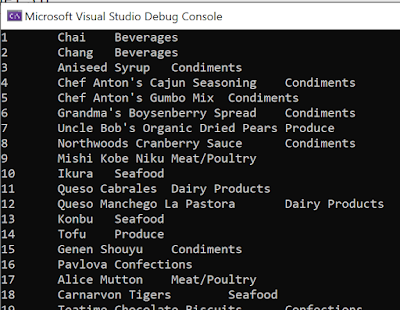
Run your application and you should see the following output:

EF Core 5.0 diagnostics

Entity Framework 5.0 is providing us with some diagnostics features.  I will let you know of two such features:

1) ToQueryString() - EF Core 5.0 comes with SQL-based brother to ToString() method for LINQ-queries. This method is called ToQueryString() and it returns provider-specific SQL without connecting to database server. Let's use ToQueryString() with our query object. Modify our code by adding a WriteLine() statement to inspect the query statement that is actually being sent to the database. Insert the statement in boldface below to the Main() method in Program.cs:

using (NorthwindContext context = new NorthwindContext()) {
  var query = context.Products
      .Include(c => c.Category);

  Console.WriteLine(query.ToQueryString());

  foreach (var p in query) {
      Console.WriteLine($"{p.ProductId}\t{p.ProductName}\t{p.Category.CategoryName}");
  }
}

Run your application and you will see the following output:

ToQueryString()

Note the raw query at the top. This is displayed before the query is sent to the database for processing.

2) LogTo() - Comment out the Console.WriteLine() code that we added earlier. Open the  the Data/NorthwindContext.cs file in the editor. Around line 31, add the option shown below in boldface to the optionsBuilder:

optionsBuilder
  .UseSqlServer("Data Source=localhost,1444;Initial Catalog=Northwind;Persist Security Info=True;User ID=sa;Password=Passw0rd2018")
  .LogTo(Console.WriteLine, Microsoft.Extensions.Logging.LogLevel.Information);

This causes logging to be sent to the console. Run your app and you should see the following diagnostics information:

LogTo()

.NET 5.0 Syntactic Sugar

We can simplify Program.cs using some of the new features in C# 9. Go ahead and delete the namespace, class and Main() method declarations so that Program.cs looks like this:

using Microsoft.EntityFrameworkCore;
using System;
using TestEFPowerTools.Data;

using (NorthwindContext context = new NorthwindContext()) {
    var query = context.Products
        .Include(c => c.Category);

    foreach (var p in query) {
        Console.WriteLine($"{p.ProductId}\t{p.ProductName}\t{p.Category.CategoryName}");
    }
}

The program runs just like before and it is much more simplified. I call this syntactic sugar.

Cleanup

Once you are done, you can stop and remove the Northwind docker container with the following command:

docker rm -f nw

Conclusion

I hope you found this article valuable and hope you join me again in future articles.