Showing posts with label CRUD. Show all posts

Monday, February 16, 2026

Scaffolding Blazor pages with microsoft.dotnet-scaffold

In this tutorial, I will show you how to build a server-side Blazor application that connects directly to a SQLite database using Entity Framework Core. We will scaffold the CRUD pages with the microsoft.dotnet-scaffold tool. There is also a quick introduction into the QuickGrid component.

Source Code: https://github.com/medhatelmasry/BlazorStudents

Companion Video: https://youtu.be/4hbE-GZ-WZA

Pre-requisites

  1. .NET Framework 10+
  2. VS Code (or any other .NET editor)
  3. dotnet-ef tool
  4. microsoft.dotnet-scaffold tool

Getting Started

In a terminal window, go to your working directory. Enter the following commands to create a Server-Side Blazor application inside a directory called BlazorStudents:

dotnet new blazor -int server --auth individual -o BlazorStudents
cd BlazorStudents

Run the application by entering the following command:

dotnet watch

The following page will load into your default browser:

The default page after creating and running a server-side blazor template.

Open the BlazorStudents folder in Visual Studio Code (or any other .NET editor).

We will work with a very simple student model. Therefore, add a Student class file in a folder named Models with the following content: 

public class Student {
    public int StudentId { get; set; }

    [Required(ErrorMessage = "You must enter first name.")]
    public string? FirstName { get; set; }

    [Required(ErrorMessage = "You must enter last name.")]
    public string? LastName { get; set; }

    [Required(ErrorMessage = "You must enter school.")]
    public string? School { get; set; }
    
    [Required(ErrorMessage = "You must enter gender.")]
    public string? Gender { get; set; }
    
    [Required(ErrorMessage = "You must enter date of birth.")]
    public DateTime? DateOfBirth { get; set; }
}

From within a terminal window at the root of your BlazorStudents project,  run the following command to add some required packages:

dotnet add package CsvHelper

The CsvHelper package will help us read data from a CSV.

Developers prefer having sample data when building data driven applications. Therefore, we will create some sample data to ensure that our application behaves as expected. Copy the CSV data at https://gist.github.com/medhatelmasry/e8d4edc2772a538419adda45e8f82685 and save it in a text file named students.csv in the wwwroot folder.

Edit Data/ApplicationDbContext.cs and add to the class the following property and methods:

public DbSet<Student> Students => Set<Student>();

protected override void OnModelCreating(ModelBuilder modelBuilder) {
  base.OnModelCreating(modelBuilder);
  modelBuilder.Entity<Student>().HasData(GetStudents());
}

private static IEnumerable<Student> GetStudents() {
  string[] p = { Directory.GetCurrentDirectory(), "wwwroot", "students.csv" };
  var csvFilePath = Path.Combine(p);

  var config = new CsvConfiguration(CultureInfo.InvariantCulture) {
    PrepareHeaderForMatch = args => args.Header.ToLower(),
  };

  var data = new List<Student>().AsEnumerable();
  using (var reader = new StreamReader(csvFilePath)) {
    using (var csvReader = new CsvReader(reader, config)) {
      data = csvReader.GetRecords<Student>().ToList();
    }
  }

  return data;
}

Notice the above code is adding contents of the wwwroot/students.csv file as seed data into the database.

We are now ready to apply Entity Framework migrations, create the database and seed data. If you have not done so already, you will need to globally install the Entity Framework CLI tool. This tool is installed globally on your computer by running the following command in a terminal window:

dotnet tool install --global dotnet-ef

To have a clean start with Entity Framework migrations, delete the Data/Migrations folder and the Data/app.db files.

From within a terminal window inside the BlazorStudents root directory, run the following command to create migrations:

dotnet ef migrations add Stu -o Data/Migrations

This results in the creation of a migration file ending with the name ....Stu.cs in the Data/Migrations folder. 

The next step is to create the SQLite Data/app.db database file. This is done by adding the following code to Program.cs, right before app.Run():

using (var scope = app.Services.CreateScope()) {
    var services = scope.ServiceProvider;

    var context = services.GetRequiredService<ApplicationDbContext>();    
    context.Database.Migrate();
}

Run the application. This will cause students data to be seeded in the database.

Scaffolding Blazor Components

If you have not done so already, install the dotnet scaffold tool with this terminal window command:

dotnet tool install -g microsoft.dotnet-scaffold

Let us scaffold the CRUD pages for students. Run the scaffold tool from the root directory of your application with this command:

dotnet scaffold

Follow these steps....

After running the "dotnet scaffold" tool, when asked to pick a scaffolding category, select "blazor".

When asked to pick a scaffolding command, choose "Razor Components with EntityFrameworkCore (dotnet-scaffold)".

When asked for a .NET prject file, choose the only one available: BlazorStudents.csproj.

When asked for model name, choose Student (Student).

When asked for database context class, enter ApplicationDbContext.

When asked for database provider, choose: sqlite-efcore (sqlite-efcore).

When asked for page type, choose: CRUD (CRUD).

When asked to include prerelease packages, answer no.

The scaffolding process adds the following pages to your application:

There is a new folder named StudentPages (under Components/Pages) with all the razor components for CRUD operations.

Edit Components/Layout/NavMenu.razor to add this menu item:

<div class="nav-item px-3">
    <NavLink class="nav-link" href="students">
        <span class="bi bi-lock-nav-menu" aria-hidden="true"></span> Students
    </NavLink>
</div>

Find the following code in Program.cs and delete it because the scaffold tool registered ApplicatioDbContext using DbContextFactory:

builder.Services.AddDbContext<ApplicationDbContext>(options => options.UseSqlite(connectionString));

Run the application with:

dotnet watch

The app will launch in your default browser.

After the web app launches in your default browser, click on students in the left navigation. A list of students will display in the main panel

You should have the full CRUD experience once you click on Students in the left navigation.

QuickGrid

If you open StudentPages/Index.razor in your editor, you will notice that the QuickGrid Blazor component is being used to display students data. This is the code that uses QuickGrid:

<QuickGrid Class="table" Items="context.Students">
  <PropertyColumn Property="student => student.FirstName" />
  <PropertyColumn Property="student => student.LastName" />
  <PropertyColumn Property="student => student.School" />
  <PropertyColumn Property="student => student.DateOfBirth" />

  <TemplateColumn Context="student">
    <a href="@($"students/edit?studentid={student.StudentId}")">Edit</a> |
    <a href="@($"students/details?studentid={student.StudentId}")">Details</a> |
    <a href="@($"students/delete?studentid={student.StudentId}")">Delete</a>
  </TemplateColumn>
</QuickGrid>

Visit the QuickGrid for Blazor site for more information on this freely available component.

Pagination

Let's extend the QuickGrid component to add paging to StudentPages/Index.razor. Add this directive right under the first line (@page "/students"):

@rendermode InteractiveServer

The above directive tells Blazor that a component should be rendered on the server and made fully interactive using the Blazor Server model.

Add this instance variable to the @code { .... } block

private PaginationState pagination = new PaginationState { ItemsPerPage = 10 };

Next, Add the following attribute to the opening <QuickGrid .... > tag:

Pagination="@pagination"

Finally, place this Paginator component right after the closing </QuickGrid> tag:

<Paginator State="@pagination" />

Refreah the Students List page. You will see pagination in action.

Sorting

Making the columns sortable involves just adding an attribute to the <PropertyColumn...> opening tags for FirstName, LastName, School, and DateOfBirth as follows:

<PropertyColumn Property="student => student.FirstName" Sortable="true" />
<PropertyColumn Property="student => student.LastName" Sortable="true" />
<PropertyColumn Property="student => student.School" Sortable="true" />
<PropertyColumn Property="student => student.DateOfBirth" Sortable="true" />

You can now click on the column titles to sort the columns as needed:

Filtering

Add this filter input field right above the <Quickgrid ...> opening tag:

<p>There are @filtered.Count() students.</p>

<div class="search-box">
    <input class="form-control me-sm-2 " style="width: 95%" type="search" autofocus @bind="itemsFilter"
           @bind:event="oninput" placeholder="Search Filter ..." />
</div>

Add these C# properties inside the @code { . . .  } block:

string? itemsFilter;

private List<Student>? studentList {
  get {
    var data = context.Students!.ToList();
    if (!data.Any()) {
      return null;
    } else {

      return data;
    }
  }
}

private IQueryable<Student> filtered {
  get {
    if (studentList == null || !studentList.Any()) {
      return Enumerable.Empty<Student>().AsQueryable();
    }

    if (string.IsNullOrEmpty(itemsFilter)) {
      return studentList!.AsQueryable();
    } else {
      var filteredList = studentList!.AsQueryable()
      .Where(
      b => b.FirstName!.Contains(itemsFilter, StringComparison.CurrentCultureIgnoreCase)
      || b.LastName!.Contains(itemsFilter, StringComparison.CurrentCultureIgnoreCase)
      || b.School!.Contains(itemsFilter, StringComparison.CurrentCultureIgnoreCase)
      || b.Gender!.Contains(itemsFilter, StringComparison.CurrentCultureIgnoreCase)
      || b.DateOfBirth.ToString()!.Contains(itemsFilter, StringComparison.CurrentCultureIgnoreCase)
      );
      return filteredList;
    }
  }
}

In the opening <QuickGrid ... > tag, change the value of the Items attribure from "context.Students" to simply:

@filtered

You can now filter any text in any of the columns as shown below:

If you enter 1998 in the filter, all those born in 1998 will display in the main panel.

Component CSS

With Blazor components, it is easy create CSS that targets individual components. Simply create a file with the same name as the component and add to it .css. 

For example:

Create a file named StudentPages/Index.razor.css in the same folder as the component itself with this styling:

p.create-new {
    background-color: orange;
}

In StudentPages/Index.razor component, add the following styling to the <p> tag that contains the “Create New” link as follows:

<p class="create-new">
    <a href="students/create">Create New</a>
</p>

You will notice that styling is successfully applied to the StudentPages/Index.razor component.

Image showing that the styling in StudentPages/Index.razor.css has affected the Index.razor component by setting the background color of the "Create New" link to orange.

The .NET scaffold tool can be used for more than creating pages for Blazor app. Among other things, it can be used for scaffolding Aspire, API, MVC Controllerts, and Itentity.

Monday, November 6, 2023

Server-side Blazor 7.0 APP with CRUD Operations and SQLite

In this post, we will build a Server-side Blazor app talks directly to the SQLite database. This is a very realistic option since both blazor and the database server run on the server. 

Source Code: https://github.com/medhatelmasry/ServerBlazorEF7

Overview

Blazor is a framework for developing interactive client-side web applications using C# instead of JavaScript. 

Architecture

The architecture of the application that we will be building will look like this:


ASP.NET Core hosts the server-side app and sets up SignalR endpoint where clients connect. SignalR is responsible for updating the DOM on the client with any changes. The Blazor application on the server connects directly to the database using Entity Framework Core.

What are we doing in this tutorial?

In this tutorial I will show you how to build a server-side Blazor application that connects directly with SQLite database using Entity Framework Core.

Let's start coding

1) In a terminal window, go to your working directory. Enter the following command to create a Server-Side Blazor application inside a directory called ServerBlazorEF: 

dotnet new blazorserver -f net7.0 -o ServerBlazorEF

2) Open the ServerBlazorEF folder in Visual Studio Code.

3) For a Blazor server-side project, the IDE requests that you add assets to build and debug the project. Select Yes.

4) Hit Ctrl F5 (or dotnet watch in a terminal window) to run the application. Your default browser will load a page that looks like this: 


Our objective is to extend the above application so that it talks to SQLite using Entity Framework Core. To this end, we will be dealing with a very simple student model. Therefore, add a Student.cs class file in a folder named Models with the following content: 

public class Student {
    public int StudentId { get; set; }
    [Required]
    public string? FirstName { get; set; }
    [Required]
    public string? LastName { get; set; }
    [Required]
    public string? School { get; set; }
}

Since we will be using SQLite, we will need to add the appropriate packages. Therefore, from within a terminal window at the root of your ServerBlazorEF project, run the following commands that will add the appropriate database related packages: 

dotnet add package Microsoft.AspNetCore.Diagnostics.EntityFrameworkCore
dotnet add package Microsoft.AspNetCore.Identity.EntityFrameworkCore
dotnet add package Microsoft.EntityFrameworkCore.Sqlite
dotnet add package Microsoft.EntityFrameworkCore.Design
dotnet add package CsvHelper 

We need to add a connection string for the database. Add the following to the appsettings.json file: 

"ConnectionStrings": {
  "DefaultConnection": "DataSource=college.db;Cache=Shared"
}
 
We will be using the Entity Framework Code First approach. 

Developers prefer having sample data when building data driven applications. Therefore, we will create some sample data to ensure that our application behaves as expected. Copy the following data and save it in a text file named students.csv in the wwwroot folder:

StudentId,FirstName,LastName,School
1,Tom,Max,Nursing
2,Ann,Fay,Mining
3,Joe,Sun,Nursing
4,Sue,Fox,Computing
5,Ben,Ray,Mining
6,Zoe,Cox,Business
7,Sam,Ray,Mining
8,Dan,Ash,Medicine
9,Pat,Lee,Computing
10,Kim,Day,Nursing
11,Tim,Rex,Computing
12,Rob,Ram,Business
13,Jan,Fry,Mining
14,Jim,Tex,Nursing
15,Ben,Kid,Business
16,Mia,Chu,Medicine
17,Ted,Tao,Computing
18,Amy,Day,Business
19,Ian,Roy,Nursing
20,Liz,Kit,Nursing
21,Mat,Tan,Medicine
22,Deb,Roy,Medicine
23,Ana,Ray,Mining
24,Lyn,Poe,Computing
25,Amy,Raj,Nursing
26,Kim,Ash,Mining
27,Bec,Kid,Nursing
28,Eva,Fry,Computing
29,Eli,Lap,Business
30,Sam,Yim,Nursing
31,Joe,Hui,Mining
32,Liz,Jin,Nursing
33,Ric,Kuo,Business
34,Pam,Mak,Computing
35,Cat,Yao,Medicine
36,Lou,Zhu,Mining
37,Tom,Dag,Business
38,Stu,Day,Business
39,Tom,Gad,Mining
40,Bob,Bee,Business
41,Jim,Ots,Business
42,Tom,Mag,Business
43,Hal,Doe,Mining
44,Roy,Kim,Mining
45,Vis,Cox,Nursing
46,Kay,Aga,Nursing
47,Reo,Hui,Nursing
48,Bob,Roe,Mining
49,Jay,Eff,Computing
50,Eva,Chu,Business
51,Lex,Rae,Nursing
52,Lin,Dex,Mining
53,Tom,Dag,Business
54,Ben,Shy,Computing
55,Rob,Bos,Nursing
56,Ali,Mac,Business
57,Ken,Sim,Medicine

The starting point is to create a database context class. Add a C# class file named SchoolDbContext.cs in the Data folder with the following class code: 

public class SchoolDbContext : DbContext {
  public DbSet<Student> Students => Set<Student>();

  public SchoolDbContext(DbContextOptions<SchoolDbContext> options)
    : base(options) { }

  protected override void OnModelCreating(ModelBuilder modelBuilder) {
    base.OnModelCreating(modelBuilder);
    modelBuilder.Entity<Student>().HasData(GetStudents());
  }
  
  private static IEnumerable<Student> GetStudents() {
    string[] p = { Directory.GetCurrentDirectory(), "wwwroot", "students.csv" };
    var csvFilePath = Path.Combine(p);

    var config = new CsvConfiguration(CultureInfo.InvariantCulture) {
      PrepareHeaderForMatch = args => args.Header.ToLower(),
    };

    var data = new List<Student>().AsEnumerable();
    using (var reader = new StreamReader(csvFilePath)) {
      using (var csvReader = new CsvReader(reader, config)) {
        data = csvReader.GetRecords<Student>().ToList();
      }
    }
    return data;
  }
}

Notice the above code is adding the contents of the wwwroot/students.csv file as seed data into the database.

In the Program.cs file, just before ‘var app = builder.Build();’, add the following code so that our application can use SQLite:

var connectionString = builder.Configuration.GetConnectionString("DefaultConnection");
builder.Services.AddDbContext<SchoolDbContext>(
    options => options.UseSqlite(connectionString)
);
 
We are now ready to apply Entity Framework migrations, create the database and seed some sample data. If you have not done so already, you will need to globally install the Entity Framework CLI tool. This tooling is installed globally on your computer by running the following command in a terminal window:

dotnet tool install --global dotnet-ef

Remember to build your entire solution before proceeding. Then, from within a terminal window inside the ServerBlazorEF root directory, run the following command to create migrations: 

dotnet ef migrations add M1 -o Data/Migrations

 You should get no errors and this results in the creation of a migration file ending with the name ....M1.cs in the Migrations folder which contains commands for inserting sample data.

The next step is to create the SQLite college.db database file. This is done by running the following command from inside a terminal window at the root folder of the application. 

dotnet ef database update

If no errors are encountered, you can assume that the database was created and properly seeded with data.

Add a class file named StudentService.cs in the Data folder with following code: 

public class StudentService {
  private SchoolDbContext _context;
  
  public StudentService(SchoolDbContext context) {
    _context = context;
  }

  public async Task<List<Student>> GetStudentsAsync() {
   return await  _context.Students.ToListAsync();
  }

  public async Task<Student?> GetStudentByIdAsync(int id) {
    return await _context.Students.FindAsync(id) ?? null;
  }

  public async Task<Student?> InsertStudentAsync(Student student) {
    _context.Students.Add(student);
    await _context!.SaveChangesAsync();

    return student;
  }

  public async Task<Student> UpdateStudentAsync(int id, Student s) {
    var student = await _context.Students!.FindAsync(id);

    if (student == null)
      return null!;

    student.FirstName = s.FirstName;
    student.LastName = s.LastName;
    student.School = s.School;

    _context.Students.Update(student);
    await _context.SaveChangesAsync();

    return student!;
  }

  public async Task<Student> DeleteStudentAsync(int id) {
    var student = await _context.Students!.FindAsync(id);

    if (student == null)
      return null!;

    _context.Students.Remove(student);
    await _context.SaveChangesAsync();

    return student!;
  }

  private bool StudentExists(int id) {
    return _context.Students!.Any(e => e.StudentId == id);
  }
}

The above StudentService class provides all the necessary methods for CRUD operations involving data retrieval, insertion, update and deletion.

We need to configure the StudentService class as a scoped service so that we can use dependency injection. Scoped lifetime services are created once per client request (connection). Add the following statement to the Program.cs just before ‘var app = builder.Build()’: 

builder.Services.AddScoped<StudentService>();

Close all the files in your editor. Rename FetchData.razor file in the Pages folder to Students.razor. Replace its contents with the following code: 

@page "/students"
@using ServerBlazorEF.Data
@using ServerBlazorEF.Models
@inject StudentService studentService
<h1>Students</h1>

@if (students == null) {
  <p><em>Loading...</em></p>
} else {
  <table class='table table-hover'>
    <thead>
      <tr>
        <th>ID</th>
        <th>First Name</th>
        <th>Last Name</th>
        <th>School</th>
      </tr>
    </thead>
    <tbody>
      @foreach (var item in students)
      {
        <tr>
          <td>@item.StudentId</td>
          <td>@item.FirstName</td>
          <td>@item.LastName</td>
          <td>@item.School</td>
        </tr>
        }
    </tbody>
  </table>
}


@code {
  List<Student>? students;

  protected override async Task OnInitializedAsync() {
    students = await studentService.GetStudentsAsync();
  }

}

Since we will be using the Student class in multiple razor pages, move the @using ServerBlazorEF.Models statement on line 3 in the above code to _Imports.razor.

Let us focus on the @code block. The OnInitAsyns() method is called when the page gets loaded. It makes a call to the student service which loads a list of students from the database. The remaining HTML/Razor code simply displays the data in a table.

Let's modify the menu item on the left navigation of our application. Open Shared/NavMenu.razor in the editor and change the link for “Fetch data” so it looks like this:

<div class="nav-item px-3">
  <NavLink class="nav-link" href="students">
    <span class="oi oi-list-rich" aria-hidden="true"></span> Get Students
  </NavLink>
</div>

You must be eager to test out the server-side Blazor project. Run your app and select the “Get Students” link on the left navigation, this is what the output will look like: 

Adding data

Our Blazor app is not complete without add, edit and delete functionality. We shall start with adding data. 
Let us re-purpose Counter.razor so that it becomes our page for adding data. Rename Counter.razor to AddStudent.razor.

Replace AddStudent.razor with the following code:

@page "/addstudent"
@using ServerBlazorEF.Models
@inject ServerBlazorEF.Data.StudentService studentService
@inject NavigationManager NavManager

<PageTitle>Add Student</PageTitle>

<h1>Add Student</h1>

<EditForm Model="@student" OnValidSubmit="HandleValidSubmit">
  <DataAnnotationsValidator />
  <ValidationSummary />

  <div class="form-group">
    <label for="FirstName">First Name:</label>
    <InputText id="FirstName" class="form-control" @bind-Value="student.FirstName" />
  </div>

  <div class="form-group">
    <label for="LastName">Last Name:</label>
    <InputText id="LastName" class="form-control" @bind-Value="student.LastName" />
  </div>

  <div class="form-group">
    <label for="School">School:</label>
    <InputText id="School" class="form-control" @bind-Value="student.School" />
  </div>

  <button type="submit" class="btn btn-primary">Submit</button>
</EditForm>

@code {
  private Student student = new Student();

  private async Task HandleValidSubmit() {
    await studentService.InsertStudentAsync(student);
    NavManager.NavigateTo("/students");
  }
}

Open Shared/NavMenu.razor in the editor and change the link for “Counter” so it looks like this:

<div class="nav-item px-3">
    <NavLink class="nav-link" href="addstudent">
        <span class="oi oi-list-rich" aria-hidden="true"></span> Add Student
    </NavLink>
</div>

Run the Blazor server-side project and select Add Student on the left navigation menu. This is what it should look like: 


I entered Bob, Smith and Travel for data and when I clicked on the Submit button I got the following data inserted into the database:


Update & Delete data using PUT & DELETE methods

We want to be able to select a row of data and update or delete  it. Add the following additional cells to the table row in Students.razor: 

<td><a class="btn btn-success btn-sm" href="/updel/@item.StudentId/edit">edit</a></td>

<td><a class="btn btn-danger btn-sm" href="/updel/@item.StudentId/del">del</a></td> 

The above would pass the appropriate studentId and mode parameters to another page with route /updel.

Create a text file named UpdateDelete.razor in the Pages folder with the following content:

@page "/updel/{id}/{mode}"
@using ServerBlazorEF.Models
@inject ServerBlazorEF.Data.StudentService studentService
@inject NavigationManager NavManager

<style>
    fieldset {
        border: 2px solid #000;
        padding-left: 20px;
        margin-bottom: 20px;
    }
</style>

<PageTitle>Update/Delete Student</PageTitle>

@if (student != null && Mode == "edit") // Update
{
    <p>Update Student with ID == @Id</p>
    <EditForm Model="@student" OnValidSubmit="HandleValidSubmit">
        <DataAnnotationsValidator />
        <ValidationSummary />

        <div class="form-group">
            <label for="FirstName">First Name:</label>
            <InputText id="FirstName" class="form-control" @bind-Value="student.FirstName" />
        </div>

        <div class="form-group">
            <label for="LastName">Last Name:</label>
            <InputText id="LastName" class="form-control" @bind-Value="student.LastName" />
        </div>

        <div class="form-group">
            <label for="School">School:</label>
            <InputText id="School" class="form-control" @bind-Value="student.School" />
        </div>

        <button type="submit" class="btn btn-primary">Update</button>
    </EditForm>

    @code {
        private async Task HandleValidSubmit()
        {
            await studentService.UpdateStudentAsync(student!.StudentId, student);
            NavManager.NavigateTo("/students");
        }
    }
}
else if (student != null && Mode == "del")
{ // Delete
    // display student details
    <fieldset>
        <legend>Student Information</legend>
        <p>Student ID: @Id</p>
        <p>First Name: @student.FirstName</p>
        <p>Last Name: @student.LastName</p>
        <p>School: @student.School</p>
    </fieldset>
    <p>Delete Student with ID == @Id</p>
    <p>Are you sure?</p>
    <button type="button" class="btn btn-danger" @onclick="HandleDeleteStudent">Delete</button>
    @code {
    private async Task HandleDeleteStudent()
    {
        await studentService.DeleteStudentAsync(student!.StudentId);
        NavManager.NavigateTo("/students");
    }
}
}
else
{
    <p>Student with ID == @Id not found</p>
}

@code {
    [Parameter]
    public string? Id { get; set; }
    [Parameter]
    public string? Mode { get; set; }
    private Student? student = new Student();

    protected override async Task OnInitializedAsync()
    {
        int intId = Convert.ToInt32(Id);
        student = await studentService.GetStudentByIdAsync(intId);
    }
}

Note how parameters are passed from one page to another.

1) {id}/{mode} are defined in the route
2) In the @code section, the following parameters are defined:

[Parameter]
public string? Id { get; set; }
[Parameter]
public string? Mode { get; set; }

CRUD Experience


Component CSS

In the UpdateDeleter.razor page, notice that we have some CSS in the <style> . . .  </style> block. We can move this into a CSS file that only serves the UpdateDelete.razor component. 

In the Pages foldr, create a text file name UpdateDelete.razor.css and add to it the following CSS:

fieldset {
  border: 2px solid #000;
  padding-left: 20px;
  margin-bottom: 20px;
}

Meantime, delete the entire <style> . . . . </style> block in UpdateDeleter.razor. The page should behave just like it did before when you view the delete page.

SignalR

Server-side Blazor uses SignalR to keep a copy of the DOM on the server and to only update changes on the client. Open your Chrome browser development settings and look at the blazor line in the Network tab. This gives you an indication that websockets are used to transmit data between clent and server.


Also, look at the negotiate line in the Network tab.


I hope you learned something new in this tutorial and trust that you will build much more sophisticated Blazor apps.

Wednesday, March 16, 2022

Build & publish Azure Functions app that uses a budget SQLite database & .NET 6.0

In this tutorial I will build a Web API application using Azure Functions & SQLite. Although it is not typical to use SQLite with Azure Functions, this is a decent option if you want to have a cheap storage solution. I will later deploy the SQLite enabled Azure Function. This tutorial was done on a Windows 11 computer with VS Code.

Source code: https://github.com/medhatelmasry/SQLiteFunction.git

Prerequisites

Create a folder named SQLiteFunction on your hard drive at the location where your project will reside. 

Under the Functions tab in VS Code, create a new Azure Functions project.


Navigate to the location on your hard drive that you have designated as your workspace folder for this project. You will next be asked to select a programming language. Choose C#.


You will then be asked to choose the .NET runtime, choose .NET 6:


You will be asked to choose a template for your project's first function. Note that you can have more than one function in your project. Choose HttpTrigger.


Give your function a name. I named my function HttpApi.


Hit Enter after you give your function a name. Give your class a namespace. The namespace I used is SQLiteFunction. I then hit Enter.


Choose Anonymous for AccessRights.

When asked about how you would like to open your project, choose "Open in current window".


If a popup window appears asking if you wish to restore unresolved dependencies, click the Restore button.

Let us see what the app does. Hit CTRL F5 on the keyboard. The built-in VS Code terminal window will eventually display a URL that uses port number 7071:


NOTE: You can start your function app with the terminal command: func start

Copy and paste the URL into a browser or hit CTRL Click on the link. You will see the following output in your browser:


The message in your browser suggests that you should pass a name query string. I appended the following to the URL: ?name=Superman and got the following result:


We will need to add some NuGet packages. Execute the following dotnet commands from a terminal window in the root directory of your project:

dotnet add package Microsoft.Azure.Functions.Extensions
dotnet add package Microsoft.EntityFrameworkCore.SQLite
dotnet add package Microsoft.EntityFrameworkCore.SQLite.Design
dotnet add package Microsoft.EntityFrameworkCore.Tools

Let us make a few minor enhancements to our application.

1) Our SQLite database will be named school.db. Add the following to the project's .csproj file so that the SQLite database is copied to the output directory when the app gets built:

<ItemGroup>
 <None Update="school.db">
   <CopyToOutputDirectory>PreserveNewest</CopyToOutputDirectory>
 </None>  
</ItemGroup>
2) Change the signature of the HttpAPI class so that it does not have the static keyword. Therefore, the signature of the class will look like this:

public class HttpApi

3) Create a Models folder and add to it a simple Student.cs class file with the following content:

using System.ComponentModel.DataAnnotations;

namespace SQLiteFunction.Models;

public class Student {
    public int StudentId { get; set; }
    [Required]
    public string FirstName { get; set; }
    [Required]
    public string LastName { get; set; }
    [Required]
    public string School { get; set; }
}

4) We will deploy our Azure Functions app to a Windows server on Azure. When the school.db SQLite database file is published to Azure, it will reside in directory d:\home\site\wwwroot. Therefore, we shall create a helper class that will locate for us the SQLite database file in both development and deployment environments. Create a file named Utils.cs in the Models folder and add to it the following code:

using System;

namespace SQLiteFunction.Models;

public class Utils
{
    public static string GetSQLiteConnectionString()
    {
        var home = Environment.GetEnvironmentVariable("HOME") ?? "";
        Console.WriteLine($"home: {home}");
        if (!string.IsNullOrEmpty(home))
        {
            home = System.IO.Path.Combine(home, "site", "wwwroot");
        }
        var databasePath = System.IO.Path.Combine(home, "school.db");
        var connStr = $"Data Source={databasePath}";

        return connStr;
    }
}

The above helper class provides us with a static method Utils.GetSQLiteConnectionString() that returns the fully qualified location of the SQLite database file named school.db.

5) Add an Entity Framework DbContext class to the Models folder. In our case, we will add a class file named ApplicationDbContext.cs with the following content:

using Microsoft.EntityFrameworkCore;
using System;

namespace SQLiteFunction.Models;

public class ApplicationDbContext : DbContext
{
    public ApplicationDbContext() { }
    public ApplicationDbContext(DbContextOptions<ApplicationDbContext> options) : base(options) { }
    public DbSet<Student> Students { get; set; }

    protected override void OnConfiguring(DbContextOptionsBuilder optionsBuilder)
    {
        if (!optionsBuilder.IsConfigured)
        {
             optionsBuilder.UseSqlite(Utils.GetSQLiteConnectionString());
        }
    }

    protected override void OnModelCreating(ModelBuilder builder)
    {
        base.OnModelCreating(builder);

        builder.Entity<Student>().HasData(
          new
          {
              StudentId = 1,
              FirstName = "Jane",
              LastName = "Smith",
              School = "Medicine"
          }, new
          {
              StudentId = 2,
              FirstName = "John",
              LastName = "Fisher",
              School = "Engineering"
          }, new
          {
              StudentId = 3,
              FirstName = "Pamela",
              LastName = "Baker",
              School = "Food Science"
          }, new
          {
              StudentId = 4,
              FirstName = "Peter",
              LastName = "Taylor",
              School = "Mining"
          }
        );
    }
}

The above context class seeds some sample data pertaining to four students.

6) To register a service like ApplicationDbContext, create a class file named Startup.cs in the root of your application. The Startup class implements FunctionStartup. This class will look like this:

using Microsoft.EntityFrameworkCore;
using Microsoft.Extensions.DependencyInjection;
using Microsoft.Azure.Functions.Extensions.DependencyInjection;
using SQLiteFunction.Models;

[assembly: FunctionsStartup(typeof(SQLiteFunction.StartUp))]
namespace SQLiteFunction
{
    public class StartUp : FunctionsStartup
    {
        public override void Configure(IFunctionsHostBuilder builder)
        {
            builder.Services.AddDbContext<ApplicationDbContext>(options =>
            {
                options.UseSqlite(Utils.GetSQLiteConnectionString());
            });
        }

        public override void ConfigureAppConfiguration(IFunctionsConfigurationBuilder builder)
        {
            base.ConfigureAppConfiguration(builder);
        }

    }
}

7) Inject the ApplicationDbContext class that is needed by your function class. Open HttpApi.cs in the editor and add the following instance variables and constructor at the top of the class:

private readonly ApplicationDbContext _context;
 
public HttpApi(ApplicationDbContext context) {
   _context = context;
}

8) The next step is to apply Entity Framework migrations. Open a terminal window in the root of your application and execute the following EF migration command inside the same terminal window:

dotnet-ef migrations add m1 -o Data/Migrations

This produces a Data/Migrations folder in your project.


9) The next step is to create the database and tables. Execute the following command in the same terminal window as above:

dotnet-ef database update

If all goes well, you will receive a message that looks like this:

Applying migration '20220314204919_m1'.
Done.

10) Let us now create an endpoint in our Azure function that returns all the students as an API. Add the following method to the Azure functions file named HttpApi.cs:

[FunctionName("students")]
public IActionResult GetStudents(
   [HttpTrigger(AuthorizationLevel.Anonymous, "get", Route = "students")] HttpRequest req,
   ILogger log) {
   
   log.LogInformation("C# HTTP GET trigger function processed api/students request.");

   var studentsArray = _context.Students.ToArray();

   return new OkObjectResult(studentsArray);
}

All that is left for us to do is test out our application and make sure it returns our students data. Run the application by hitting CTRL F5 on the keyboard. You will see the following output in a VS Code terminal window:


Copy and paste the /api/students endpoint into a browser. Alternatively, you can simply hit CTRL Click on the link. The result will look like this:

Deployment to Azure

Click on the "Deploy to Function App ..." icon.


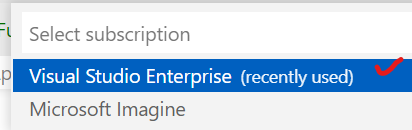
Select your subscription.


Choose "+ Create new Function App in Azure ...".


Enter a globally unique name for your function app then hit Enter.


Select .NET 6 for runtime stack:


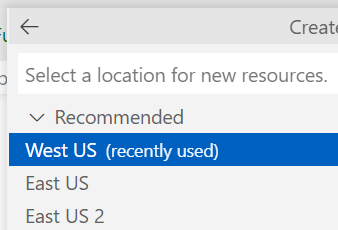
Choose a preferred data center.


The deployment process starts. Be patient as it could take 3-4 minutes. When deployment is complete you will see the following message:


If you click on the "View output" you will see the two endpoints. 


Although the first endpoint works, the second does not. To fix this problem, login into the azure portal https://portal.azure.com. In the filter field, enter func then choose "Function App".


Click on the function that was created.


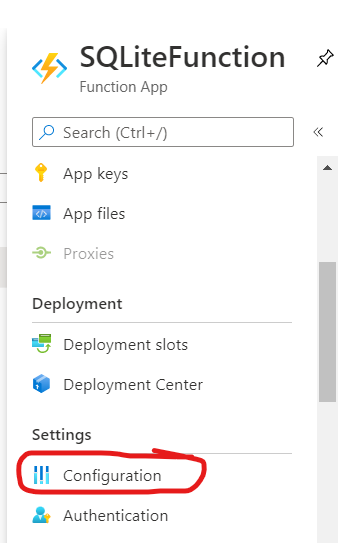
Select Configuration on the left navigation.


Click on WEBSITE_RUN_FROM_PACKAGE.


Change the value from 1 to 0 then click on OK.


Remember to Save at the top.


Back in VS Code, publish your functions app again.


Click on Deploy to confirm.


This time, deployment will not take as long as the last time. Once deployment is completed, try the /api/students on the deployed endpoint and you should find it working to your satisfaction.


Conclusion

It is easy to create Azure Functions with the SQLite. Also, creating an API with Azure Functions is much more cheaper than doing it with an ASP.NET Core Web API application because you pay a fraction of a cent for every request and the app does not need to be constantly running. It is also worth mentioning that using SQLite makes it even cheaper as you do not need to pay extra for hosting your relational database.